It’s infuriating—your Mac is booted up, all seems well, and your mouse cursor is stuck. You might be working, studying, or simply browsing, but either way, a stuck cursor can cause everything to come crashing to a halt. Before panicking about hardware malfunctions or costly repairs, though, here are some quick fixes to try.
In most instances, the issue is temporary and can be fixed at home. Let’s go through the most effective methods to get your cursor up and running again.
Rapid First Steps: Try These Before Doing Anything Else
Before attempting to delve deeper into solutions, cover the basics:
- Unplug all external devices – A malfunctioning mouse, keyboard, or other device could be interfering.
- Reboot your Mac – If your cursor is totally frozen, hold down the power button to force reboot.
- Background apps closed – A rogue app may be freezing your input. Close everything out with Command + Q or Force Quit.
- Test with an external mouse – This can help you determine if the problem lies with your Mac’s trackpad or something more fundamental.
Now, let’s get into the five core repairs that usually repair this problem.
Fix 1: Clean Your Trackpad
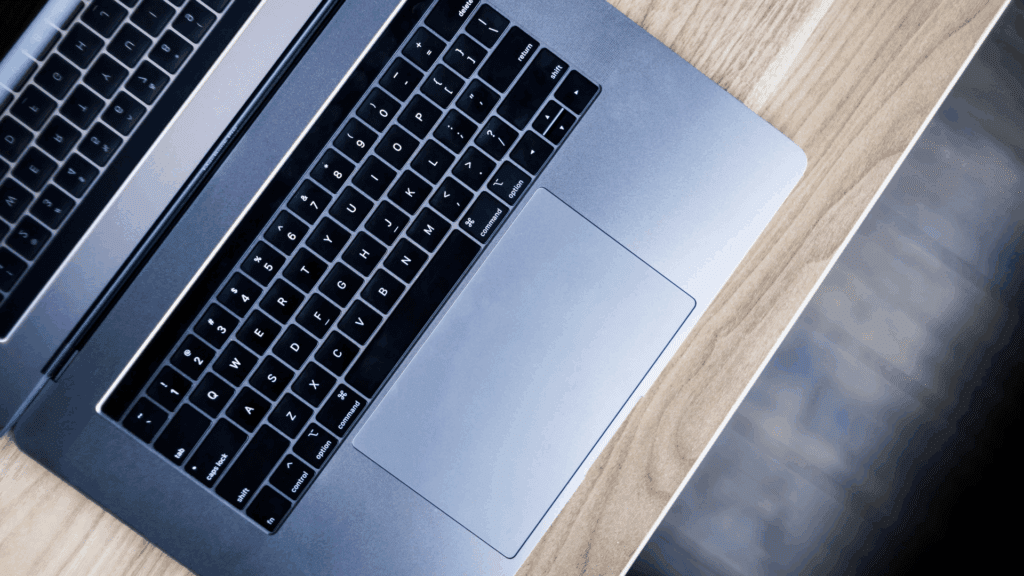
It sounds simple, but sometimes all your Mac requires is a bit of tidying. Dirt, oils, or debris on the trackpad might stop it from functioning.
How to do it:
- Gently wipe the surface of your trackpad with a clean microfiber cloth.
- For a more thorough clean, use a soft brush to sweep around the edges.
You’d be surprised how often this simple step restores normal function.
Fix 2: Change Trackpad Settings in System Preferences
macOS has a setting that disables the built-in trackpad when an external mouse is connected. If it’s been accidentally enabled, your trackpad may seem unresponsive.
Steps:
- Click the Apple menu and go to System Settings.
- Select Accessibility from the sidebar.
- Scroll down to Motor > Pointer Control.
- Turn off the toggle that reads: “Ignore built-in trackpad when mouse or wireless trackpad is present.”
If this setting was the cause of the issue, your trackpad should now respond immediately.
Fix 3: Remove Trackpad Preference (Plist) Files
Occasionally, the trackpad settings files (the so-called plist files) get corrupted. Removing them forces macOS to create new, default files.
Here’s how:
- Open Finder and type Command + Shift + G.
- Enter or paste:
/Library/Preferences/and press Return. - Find and delete these files:
com.apple.preference.trackpad.plistcom.apple.AppleMultitouchTrackpad.plist
- Drag both to the Trash.
- Restart your Mac.
When you restart, macOS will recreate the deleted files, and your cursor problem should be resolved.
Fix 4: Reset the PRAM (Intel Macs Only)
If you have an Intel-based MacBook, resetting the PRAM (Parameter RAM) can resolve this issue. This reset removes tiny hardware-related settings that might be interfering with the cursor.
Steps:
- Shut down your Mac.
- Power it on and immediately press Option + Command + P + R.
- Continue to hold for around 20 seconds.
- Release when you hear the startup chime or see the Apple logo (on T2 chip Macs).
Check if your cursor and trackpad now work after the reset. (Note: This does not work on Apple Silicon Macs such as the M1/M2.)
Fix 5: Run Apple Diagnostics
If none of these resolved the issue, it may be time to run a hardware test with Apple Diagnostics. It scans your Mac for internal faults, including the trackpad.
To do the test:
- Restart your Mac.
- Press and hold D immediately (Intel Macs) or Command + D (some Apple Silicon Macs).
- Follow the instructions on the screen.
If a hardware problem is discovered, write down the reference code and maybe reach out to Apple Support or an authorized service provider.
Final Thoughts
Having a stuck cursor on your Mac can be really frustrating—particularly when it occurs at the worst possible time. But more often than not, the reason is something trivial: a grimy trackpad, a buggy setting, or a mere misconfiguration.
Also Read : How to Boost Performance on Your HP Laptop