By using this site, you agree to the Privacy Policy and Terms of Use.
Accept

Gadget Issues

Fix Your Gadgets

  • About Us
  • How to Fix
  • Error Fix
  • Tutorial
  • Tech News
© 2025 All Rights Reserved.
Reading: How to Repair a Non-Working Volume Up (+) Button on Your Laptop or Keyboard
Share
Sign In
Notification Show More
Font ResizerAa

Gadget Issues

Fix Your Gadgets

Font ResizerAa
  • About Us
  • How to Fix
  • Error Fix
  • Tutorial
  • Tech News
Search
  • About Us
  • How to Fix
  • Error Fix
  • Tutorial
  • Tech News
Have an existing account? Sign In
Follow US
© 2022 Foxiz News Network. Ruby Design Company. All Rights Reserved.
Gadget Issues > Blog > How to Fix > How to Repair a Non-Working Volume Up (+) Button on Your Laptop or Keyboard
How to Fix

How to Repair a Non-Working Volume Up (+) Button on Your Laptop or Keyboard

skynet
Last updated: April 7, 2025 12:11 pm
skynet
Share
3 Min Read
SHARE

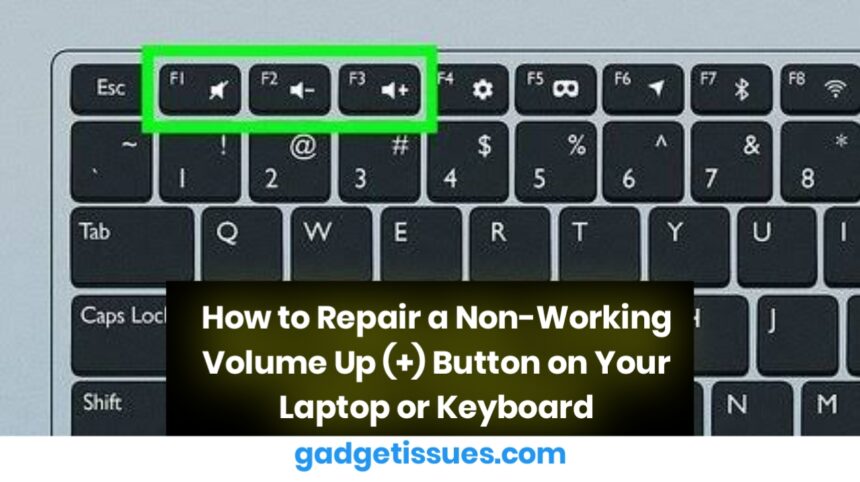
A non-working volume up (+) button can be inconvenient, especially during video calls, media playback, or presentations. Whether you’re using a laptop or an external keyboard, the issue could be caused by either software or hardware. Here’s how to troubleshoot and fix it effectively.

Contents
Step 1: Rule Out Software IssuesStep 2: Clean the Volume KeyStep 3: Remap the Volume Up FunctionStep 4: Inspect and Repair the Key MechanismConclusion

Step 1: Rule Out Software Issues

Before opening any hardware, confirm that the problem isn’t caused by a driver or system error.

  • Check your Device Manager and update the keyboard driver.
  • Use an on-screen keyboard to test if the volume can be increased through software.
  • Confirm volume control settings in Control Panel > Sound.

For deeper steps, refer to Microsoft’s official keyboard troubleshooting guide.

Step 2: Clean the Volume Key

Dust and dirt often interfere with key contact:

  • Turn off your device
  • Blow compressed air around the volume key
  • If removable, gently lift the keycap and clean the area with a dry cotton swab or soft brush

Refer to your device’s repair manual for safe keycap removal.
Step 3: Remap the Volume Up Function

If the physical key is broken but the keyboard still works, remapping the function is a quick fix. You can assign the volume up action to a different key using tools like:

  • SharpKeys – A reliable, open-source key remapping utility

This allows you to use an alternate key (e.g., F9 or another unused key) for volume control.

Step 4: Inspect and Repair the Key Mechanism

If cleaning and remapping don’t work, the key mechanism may be damaged. Depending on your device:

  • For external keyboards: Open the casing and check for broken contacts or worn circuitry

If the internal hardware is faulty, replacing the keyboard or the top panel may be necessary.

Conclusion

A non-functioning volume up button can usually be fixed with basic cleaning, software tools, or key remapping. If the issue is hardware-related, resources like iFixit can guide you through a safe repair or replacement process.

Also Read : How to Fix MacBook Display “Staingate” Issue: A Step-by-Step Guide

You Might Also Like

8 Ways to Troubleshoot Any Speaker Issues on Your Android Phone

Free Up Storage Space on Your Phone in 6 Easy Steps

How to Effectively Remove Water From Your Samsung Phone: A Step-by-Step Guide

How to Fix MacBook Display “Staingate” Issue: A Step-by-Step Guide

How to Fix a Water-Damaged Charging Port

TAGGED:**How to Repair a Non-Working Volume Up (+) Button on Your Laptop or Keyboard**Cost-Effective Fixes for Common IssuesDIY Repair TipsHardware and Software SolutionsLaptop Keyboard TroubleshootingReassigning Keys with SoftwareVolume Button FixWhen to Replace the Keyboard
Share This Article
Facebook Twitter Copy Link Print
Share
Previous Article How to Fix Dead Pixels on Your Laptop Screen
Next Article Repairing and Upgrading Your Computer: A Step-by-Step Guide

Latest News

Small visual elements like gears, data points, and element symbols
How To Fix Bluetooth Not Working After Phone Update
How to Fix
why is my phone not connecting to wifi
Why Won’t My Android Phone Connect to Wi-Fi? (And How to Fix It)
How to Fix
magnetic USB C cables
Why You Need to Stop Using Magnetic USB-C Cables Immediately
How to Fix
Troubleshooting Tips to Fix Your Gadgets
10 Tech Troubleshooting Tips to Fix Your Gadgets
How to Fix
//

“Struggling with slow internet or other gadget problems? Our blog offers step-by-step solutions to common tech issues, helping you troubleshoot and resolve problems quickly and efficiently.”

Quick Link

  • Contact Us
  • Privacy Policy
  • Terms and Conditions
  • Cookie Policy
  • Disclaimer

Read Categories

  • Error Fix
  • How to Fix
  • Tech News
  • Tutorial
  • Uncategorized

Find Us on Socials

Follow US
© 2025 Gasgetissues. All Rights Reserved.
Welcome Back!

Sign in to your account


Lost your password?