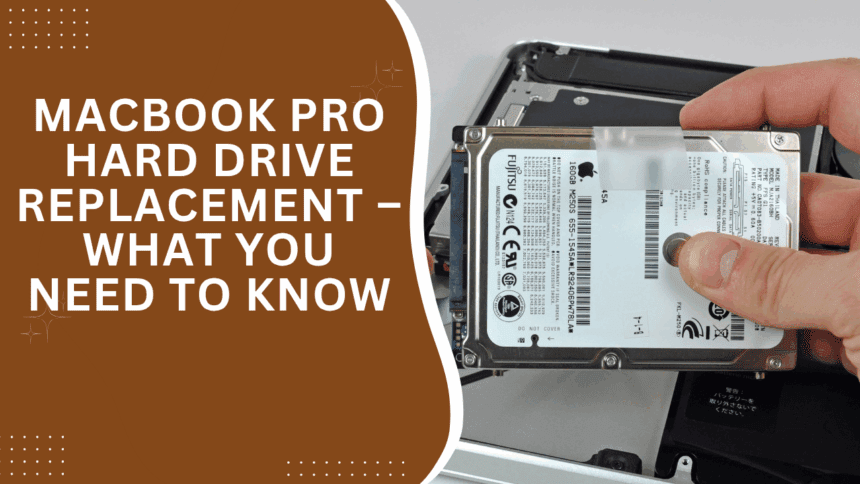
If your MacBook Pro’s hard drive is acting up, it can be really frustrating—and honestly, a little scary. Our laptops hold so much of our lives: photos, work, memories. When that hard drive starts failing, it’s normal to feel worried about losing important data or facing expensive repairs.
Sometimes, your Mac might give you a few warning signs—a slow response, strange noises, or trouble starting up. While tools like First Aid can patch things up temporarily, sometimes the best move is to replace the entire hard drive. Both solid-state drives (SSD) and traditional spinning drives wear down with time. Replacing it means giving your Mac a fresh start and more years of reliable use.
Why Is My Hard Drive Failing?
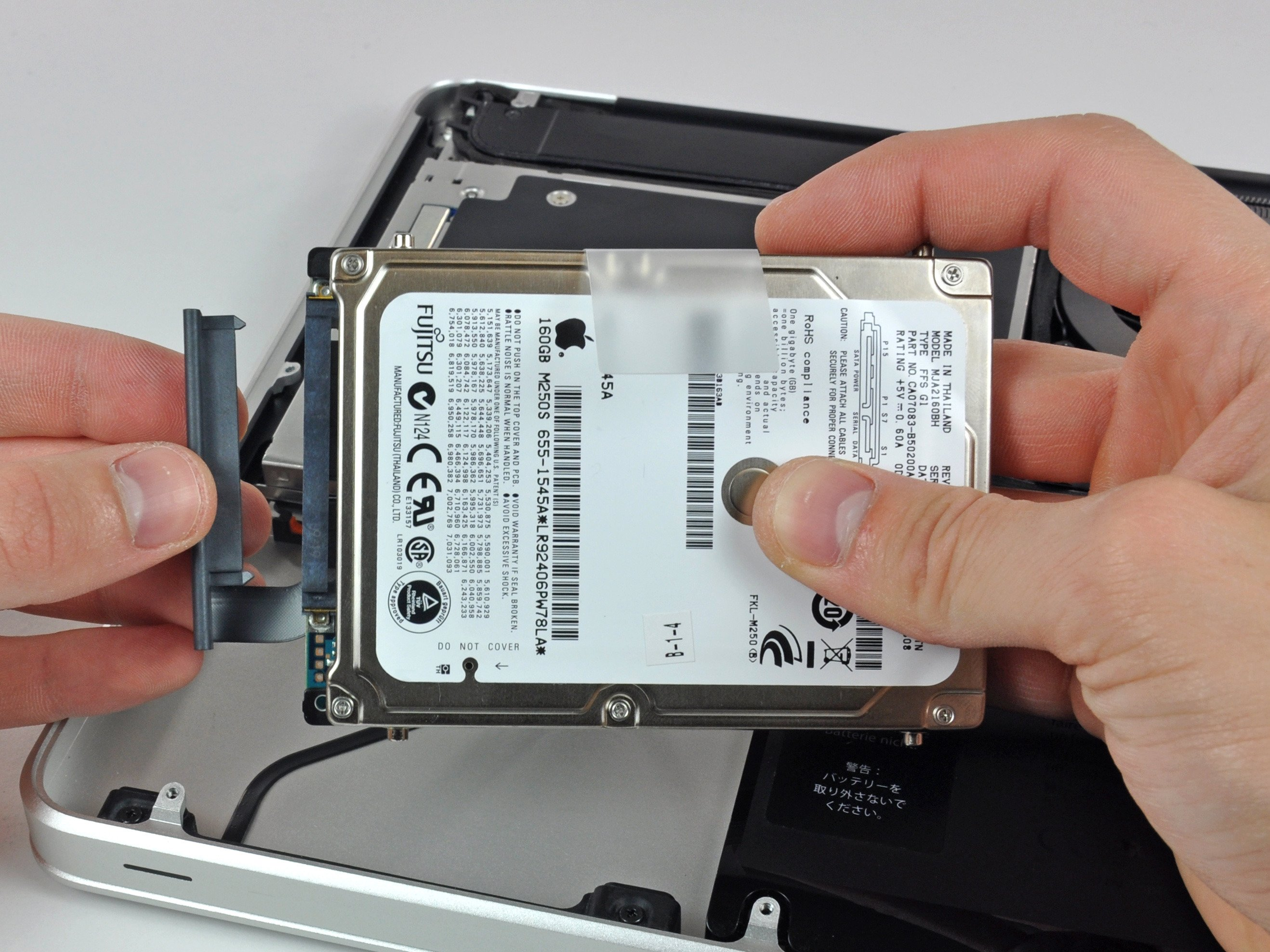
Think of your hard drive as a delicate little machine inside your Mac. It stores everything on tiny spinning disks coated with magnetic material. These platters are fragile—any physical damage like a drop, dust, or wear and tear can cause data loss or even stop your Mac from booting.
Before you panic, the first important step is to back up your data. Even if your Mac is sluggish or misbehaving, getting your photos, documents, and files safe is crucial. Once backed up, check if the issue is truly the hard drive or something else, like a loose cable or a problem with the logic board (your Mac’s main circuit board).
How Can I Fix It?
If your drive is corrupted but still somewhat working, here are some things to try:
- Use Disk Utility: This built-in tool scans your drive for errors and tries to fix logical problems. It’s like a little doctor for your Mac’s storage.
- Reset the SMC: Sometimes, resetting your Mac’s System Management Controller can fix glitches that cause storage problems.
- Professional Help: If you’re unsure or the problem seems serious, don’t hesitate to reach out to a trusted technician. It’s better to get expert help than risk losing your data.
Spotting Bad Sectors and What They Mean
Hard drive issues fall into two big groups—physical damage, which can’t be fixed by software, and logical errors, which sometimes can.
Physical damage might mean your drive needs replacing. Logical errors, like corrupted files from unexpected shutdowns or malware, can often be repaired with tools like Disk Utility or third-party software such as MiniTool Partition Wizard.
The Takeaway: Protect What Matters
Losing your hard drive is more than just a tech problem—it can feel like losing a part of your story. But with some care and timely action, you can protect your data and keep your Mac running smoothly.
Backing up your files regularly, knowing the warning signs, and acting quickly when problems start will save you a lot of stress down the road.