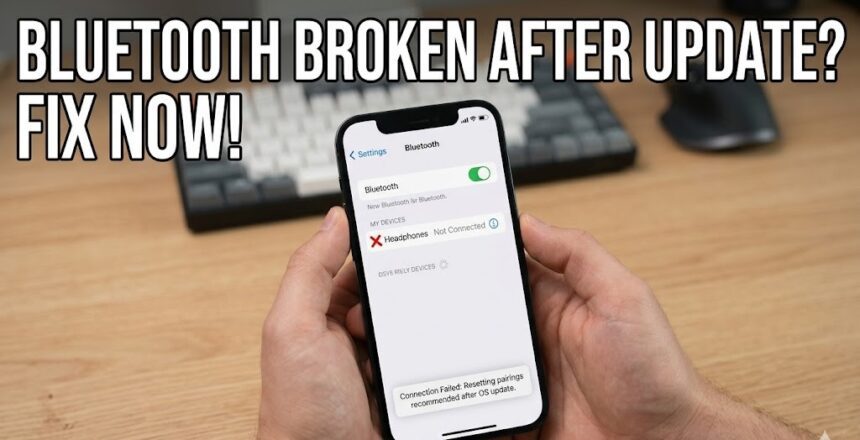
Several users have lamented facing serious Bluetooth connection issues after upgrading their phones to the latest version of Android. Many report that their Bluetooth device keeps disconnecting after a few minutes, while others notice unusual latency, disruption in audio playback, sudden silence while using earbuds, or their phones simply not detecting new Bluetooth devices.
If you are unlucky enough to be one of the users plagued with Bluetooth problems following a system update, here are several actionable ways to fix it.
Part 1: Why Did My Bluetooth Suddenly Stop Working After an Update?
Before jumping into how to fix a Bluetooth connection that is not working after a phone update, it might interest you to know why this issue exists in the first place.
While it is usually difficult to pinpoint exactly why you face Bluetooth connection issues after updating or upgrading your phone, the simple fact that you are running new software is often enough to point toward a system bug.
Your Bluetooth not working after a phone update may result from any of the following issues:
- Minor system bugs
- Corrupted or outdated system cache
- Development errors in the new software patch
- Temporary startup issues with the Bluetooth software
- A rare hardware failure
Part 2: How Do I Fix My Bluetooth Connection After an Update?
Whatever the root problem is, the good news is that you can fix most Android Bluetooth problems by yourself. Below are 7 proven solutions.
Note: We used a TECNO CAMON 19 Pro to provide the guides in this article. Depending on your phone maker and software version, the process may look slightly different, but you can always use the Settings search bar to find the equivalent system settings.
Method 1: Refresh the Bluetooth Connection
When your phone’s Bluetooth starts misbehaving after an update, the first thing you want to do is simply toggle the Bluetooth function off and on. It sounds simple, but sometimes all the system needs is a quick refresh.
- Pull down from the top of the screen to open the Quick Settings panel.
- Tap the Bluetooth icon to turn it off.
- Wait a few seconds, tap it again to turn it back on, and try to reconnect with your device.
Method 2: Restart Your Phone and the Bluetooth Device
If the problem persists, take it a step further by rebooting both your phone and the device you are trying to connect. Restarting can help refresh and re-adjust the newly updated system to solve the current problem.
- To restart your phone: Hold down the Power button on the side, then select Restart or Reboot.
- To restart your Bluetooth gadget: Turn it off, wait a few moments, and turn it on again.
Method 3: Re-Pair the Bluetooth Device With Your Phone
Updating your smartphone introduces several system changes that might corrupt your saved Bluetooth profiles. You can fix this by removing and re-adding the specific device.
- Open your device’s Settings app.
- Go to Connections > Bluetooth.
- Ensure the Bluetooth toggle is on so you can see your paired devices.
- Find the affected Bluetooth device and tap the gear icon next to it.
- Click Forget to unpair the device.
- Put your Bluetooth device back into pairing mode and reconnect it to your phone.
Method 4: Reset the Android Bluetooth App
Every Android device has a system “Bluetooth app” that manages how your phone wirelessly transmits data. Since system apps are updated during major Android upgrades, there might be a corrupted cache in the new Bluetooth app. To clear it:
- Open the Settings app.
- Click on Apps & Notifications > App List.
- Tap the 3-dot menu button in the top right corner and select Show system apps.
- Use the search bar to find Bluetooth and open it.
- Click on Storage & Cache.
- Tap Clear storage/Clear data to reset it.
- Restart your phone and try connecting again.
Method 5: Ensure Your Bluetooth Device Has Enough Power
It is easy to blame the new Android software and forget the simple things! Some Bluetooth headphones and speakers throttle their connection strength when running on low battery. To rule this out, fully charge your Bluetooth device before trying to reconnect it to your phone.
Method 6: Reset Your Phone’s Network Settings
If the above solutions fail, try resetting your phone’s broader connection settings. Warning: You will lose all your saved Wi-Fi networks, connected Bluetooth devices, and custom APNs.
- Launch the Settings app.
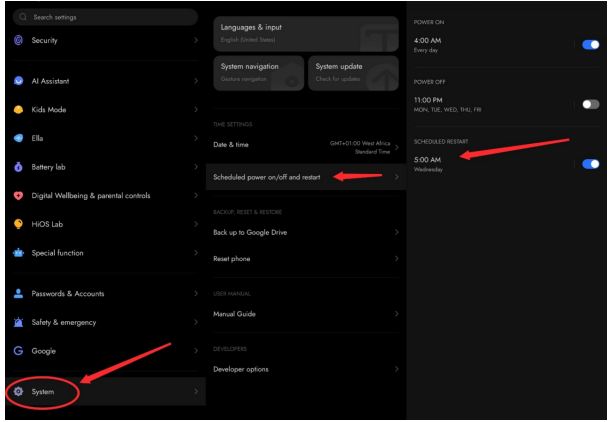
- Scroll down and select System.
- Tap Reset options.
- Click on Reset Wi-Fi, Mobile & Bluetooth.
- Tap Reset Settings to confirm.
- Restart your phone and reconfigure your Bluetooth connections from scratch.
Method 7: Check for Patch Updates or Roll Back
Facing a problem after an update is tricky because, sometimes, it can only be fixed with another software update. Your manufacturer may already be aware of the bug and have released a patch.
- Go to Settings > System > System Update and tap Check for Update.
If you are running the latest version and the Bluetooth problem persists, you may have to wait for the manufacturer to release a fix. Alternatively, you can try factory resetting your phone. If none of that works, the last resort is to roll your phone’s software back to the previous version.
Unfortunately, downgrading an Android phone’s software is difficult and usually requires flashing older firmware manually via a computer. We highly recommend visiting an official service center for help with downgrading your OS.
Need Professional Help?
If you recently updated your TECNO, Infinix, or itel phone and cannot resolve your Bluetooth connection issues, you can book a reservation online with Carlcare to avoid waiting in line.
As the official after-sales service center for Infinix, TECNO, itel, Oraimo, and Syinix brands, Carlcare ensures all your phone challenges are properly fixed by certified professionals.
Also Read : How to Fix Double Image on Smart LED TV