By using this site, you agree to the Privacy Policy and Terms of Use.
Accept

Gadget Issues

Fix Your Gadgets

  • About Us
  • How to Fix
  • Error Fix
  • Tutorial
  • Tech News
© 2025 All Rights Reserved.
Reading: How to Fix Your Laptop Battery: Easy Steps You Can Try Today
Share
Sign In
Notification Show More
Font ResizerAa

Gadget Issues

Fix Your Gadgets

Font ResizerAa
  • About Us
  • How to Fix
  • Error Fix
  • Tutorial
  • Tech News
Search
  • About Us
  • How to Fix
  • Error Fix
  • Tutorial
  • Tech News
Have an existing account? Sign In
Follow US
© 2022 Foxiz News Network. Ruby Design Company. All Rights Reserved.
Gadget Issues > Blog > How to Fix > How to Fix Your Laptop Battery: Easy Steps You Can Try Today
How to Fix

How to Fix Your Laptop Battery: Easy Steps You Can Try Today

skynet
Last updated: May 22, 2025 7:58 am
skynet
Share
3 Min Read
SHARE

Laptop batteries can be frustrating when they don’t last as long or refuse to charge properly. But don’t rush to buy a new one just yet! There are simple ways to troubleshoot and sometimes even fix battery problems yourself.

Contents
1. Check Your Battery’s Health2. Calibrate Your Battery for Accurate Charging3. Tweak Power Settings to Save Battery Life4. Keep Your Laptop Cool5. Update Drivers and BIOS6. When to Replace Your BatteryQuick Tips to Make Your Battery Last Longer

1. Check Your Battery’s Health

Before anything else, find out how your battery is doing. Most laptops let you check battery health:

  • Windows: Open Command Prompt and type powercfg /batteryreport to get a detailed battery report saved on your PC.
  • Mac: Hold the Option key and click the battery icon in the menu bar to see battery condition.

This will tell you if your battery is still strong or showing signs of wear.

2. Calibrate Your Battery for Accurate Charging
Sometimes your laptop shows the wrong battery percentage because it’s not calibrated right. Fix this by:

  • Fully charging your laptop to 100%.
  • Unplug it and use it until it completely runs out and shuts off.
  • Charge it back up to 100% without interruptions.

This helps your system better track the actual battery level.

3. Tweak Power Settings to Save Battery Life

Small changes can make a big difference:

  • Lower your screen brightness.
  • Turn off keyboard backlights if you don’t need them.
  • Close apps running in the background.
  • Use Battery Saver mode on Windows or Energy Saver on Mac.

4. Keep Your Laptop Cool

Heat kills batteries faster. Don’t use your laptop on a bed or soft surface that blocks vents. Keep it on a flat, hard surface to allow airflow.

5. Update Drivers and BIOS

Sometimes old drivers or firmware can mess with charging. Check your laptop manufacturer’s website for updates and install them to keep your battery running smoothly.

6. When to Replace Your Battery

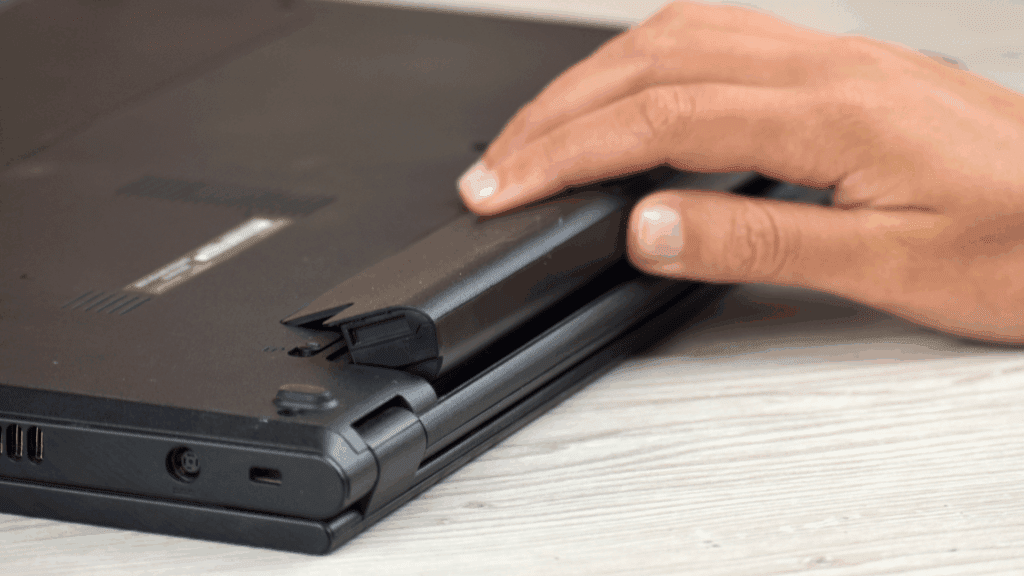
If your battery health report shows it’s in poor condition or it can’t hold a charge for long, it might be time for a new battery. Some laptops have removable batteries you can swap yourself, but others may need professional help.

Quick Tips to Make Your Battery Last Longer

  • Don’t keep your laptop plugged in 24/7 — let the battery drain a bit now and then.
  • Try to keep your charge between 20% and 80% for better long-term health.
  • Avoid letting it die completely too often.

Also Read : How to Fix Cut Cable In Middle

You Might Also Like

Why You Need to Stop Using Magnetic USB-C Cables Immediately

10 Tech Troubleshooting Tips to Fix Your Gadgets

How to Spot Hidden Damage After Dropping Your Phone

10 Common Samsung Phone Repair Problems and Solutions

Top Reasons Smartphones Overheat & How to Prevent It

TAGGED:Battery Charging IssuesBattery HealthBattery Life TipsBattery RepairBattery TroubleshootingComputer RepairDIY Laptop RepairEasy Battery FixFix Laptop BatteryFix Laptop IssuesHow to Fix BatteryLaptop Battery GuideLaptop Battery IssuesLaptop Battery ProblemsLaptop Battery ReplacementLaptop Battery TipsLaptop CareLaptop MaintenanceLaptop TipsTech Repair
Share This Article
Facebook Twitter Copy Link Print
Share
Previous Article How to Fix Your Touchpad: Should You Clean It or Replace It?
Next Article How to Get Rid of Those Annoying White Bars on Your Television Screen

Latest News

Green Lines on Phone Screen
What Causes Sudden Green Lines or Black Spots on Your Phone Screen?
Uncategorized
The Master Blueprint for 2026: Top 8 Essential Laptop and Computer Repair Tips
How to Fix
Fix a water-damaged phone in 2026 using the silica gel method. Learn why the rice myth fails and follow our 3-phase emergency guide to rescue your device and data.
Don’t Use Rice: The Definitive 2026 Guide to Saving a Water-Damaged Phone
How to Fix
Formatted, fact-checked, and optimized by Gemini AI (2026).
Why Laptop Performance Drops and How Expert Adelaide Services Restore Speed in 2026
How to Fix
//

“Struggling with slow internet or other gadget problems? Our blog offers step-by-step solutions to common tech issues, helping you troubleshoot and resolve problems quickly and efficiently.”

Quick Link

  • Contact Us
  • Privacy Policy
  • Terms and Conditions
  • Cookie Policy
  • Disclaimer

Read Categories

  • Error Fix
  • How to Fix
  • Tech News
  • Tutorial
  • Uncategorized

Find Us on Socials

Follow US
© 2025 Gasgetissues. All Rights Reserved.
Welcome Back!

Sign in to your account


Lost your password?