Let’s face it a stuck or non-working volume button on your tablet can be super annoying. Whether you’re trying to turn up your favorite playlist, adjust the volume on a video call, or just silence a game, it’s frustrating when the button doesn’t respond.
But before you give up and run to the repair shop, take a deep breath you might be able to fix it yourself at home. This guide will walk you through simple steps to figure out what’s wrong and possibly get your volume button working again.
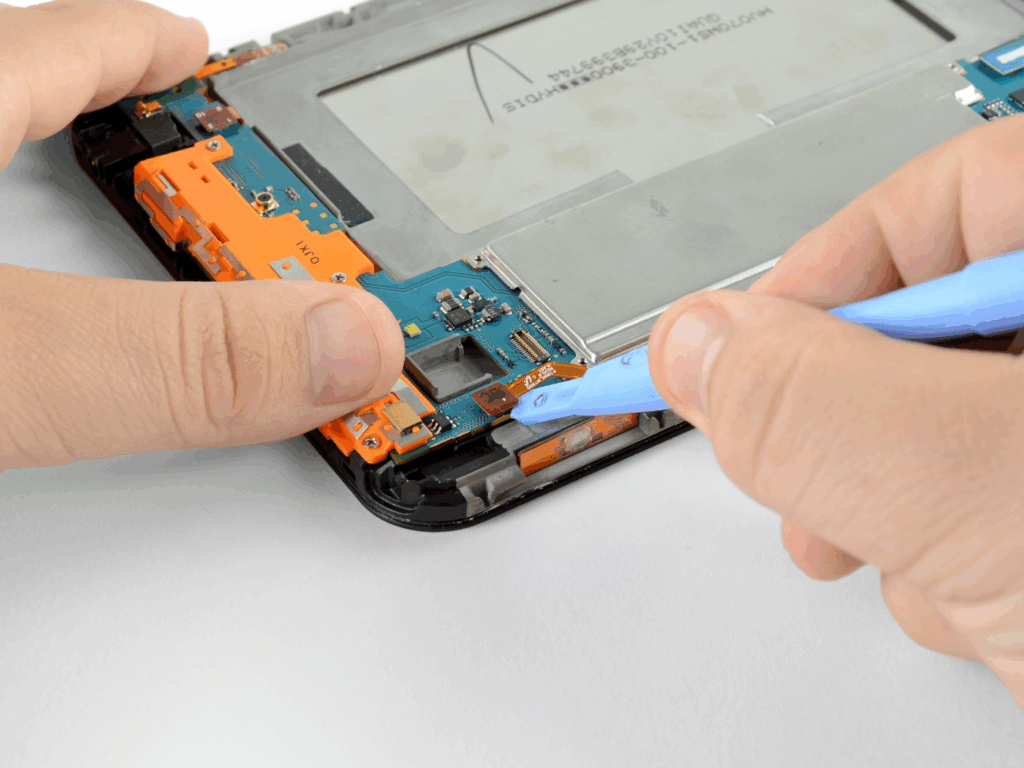
Step 1: Check If It’s a Software Glitch (Not a Hardware Issue)
Sometimes, it’s not the button itself but a software bug that’s messing things up.
Try these quick checks:
- Restart your tablet. (Yes, the classic trick—it works more often than you’d think.)
- Test the volume with the touchscreen slider in your settings.
- See if Volume Up/Down works in Safe Mode. If it does, a third-party app may be the problem.
If the button still doesn’t respond after a reboot, move on to hardware checks.
Step 2: Clean Around the Button
Dirt, lint, and even crumbs can sneak into the button gaps and stop it from pressing properly.
Here’s how to gently clean it:
- Power off your tablet.
- Use a soft brush or a dry toothbrush to clean around the button edges.
- You can also use a cotton swab slightly dampened with rubbing alcohol (not dripping wet!) and gently run it around the button.
- Let it dry completely before turning the tablet back on.
Tip: Never use sharp objects like pins they can scratch or damage the button.
Step 3: Try Light Pressure or Button Massage
Sometimes the button gets slightly misaligned inside. Use gentle pressure:
- With your thumb, press and hold the volume button down for 5–10 seconds.
- Rock the button gently back and forth don’t force it, just a light massage.
- Do this a few times and check if the clickiness comes back.
You’d be surprised how many times this little trick brings the button back to life.
Step 4: Use Assistive Volume Controls (If the Button is Physically Damaged)
If the physical button still won’t work and you’re not ready to open it up or replace anything:
- Enable on-screen volume controls (found in accessibility settings on most Android and iOS tablets).
- Use a volume control app from the app store to adjust the sound without the hardware button.
- If you’re on iPad or iPhone, turn on “AssistiveTouch” for easy volume access.
It’s not a forever fix but it keeps things working until you decide on repairs.
Step 5: Still Not Working? Time for Repair or Replacement
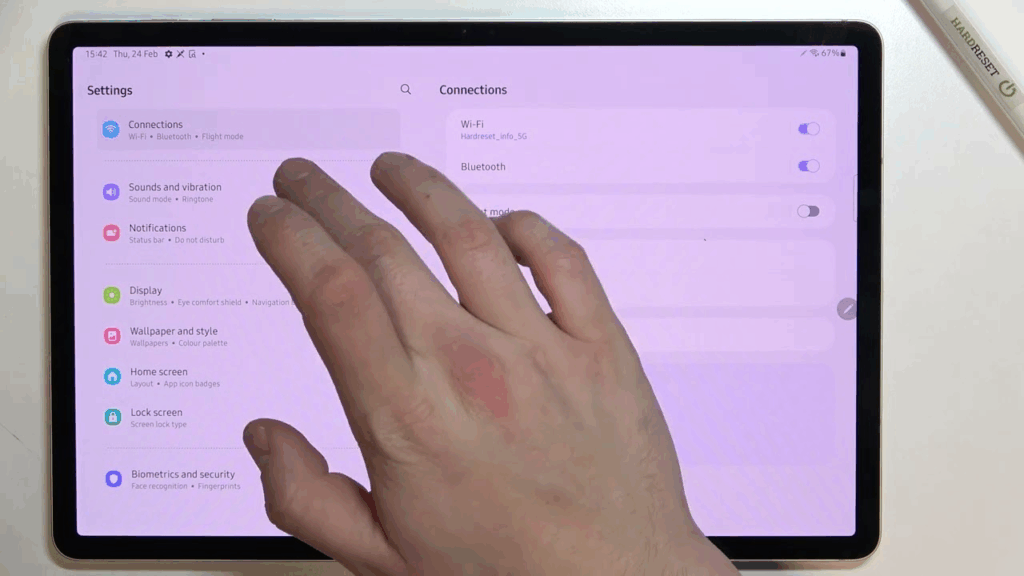
If none of the above helped, your tablet’s internal volume button hardware might be broken. At this point, you have two options:
- Visit an authorized service center or trusted local repair shop.
- If you’re tech-savvy, look up a teardown guide for your tablet model and replace the button yourself (only if you’re confident this voids warranties and can be risky).
Honest advice? Unless you love tinkering with gadgets, it’s safer to leave the repairs to the pros.
Final Thoughts
A non-working volume button might seem like a small issue, but it can seriously affect how you use your tablet every day. Before panicking or spending money on repairs, try the gentle DIY fixes above—they’re quick, safe, and often all you need.
If nothing works, don’t worry. With on screen controls and trusted repair options, you’ll still have your sound back in no time.
Also Read : How to Fix the Microphone on Apple Earphones with Remote and Mic