By using this site, you agree to the Privacy Policy and Terms of Use.
Accept

Gadget Issues

Fix Your Gadgets

  • About Us
  • How to Fix
  • Error Fix
  • Tutorial
  • Tech News
© 2025 All Rights Reserved.
Reading: Facebook Profile Lock: How to Lock Your Profile on Mobile and Desktop
Share
Sign In
Notification Show More
Font ResizerAa

Gadget Issues

Fix Your Gadgets

Font ResizerAa
  • About Us
  • How to Fix
  • Error Fix
  • Tutorial
  • Tech News
Search
  • About Us
  • How to Fix
  • Error Fix
  • Tutorial
  • Tech News
Have an existing account? Sign In
Follow US
© 2022 Foxiz News Network. Ruby Design Company. All Rights Reserved.
Gadget Issues > Blog > Tutorial > Facebook Profile Lock: How to Lock Your Profile on Mobile and Desktop
Tutorial

Facebook Profile Lock: How to Lock Your Profile on Mobile and Desktop

skynet
Last updated: July 30, 2025 7:03 am
skynet
Share
3 Min Read
Facebook Profile Lock
SHARE

Facebook Profile Lock is a simple privacy feature designed to help you control who can see your photos, posts, and personal information. If you’re concerned about strangers viewing your profile, this tool lets you quickly restrict access to friends only.

Contents
What Is Facebook Profile Lock?How to Lock Your Facebook Profile on MobileSteps to Lock Your Profile:How to Lock Your Facebook Profile on DesktopBenefits of Using Profile Lock

Below, you’ll find everything you need to know about how it works, how to enable or disable it, and what changes once you lock your profile.

What Is Facebook Profile Lock?

Profile Lock limits the visibility of your Facebook content to people who are on your friends list. Once you turn it on:

  • Only friends can see your full-size profile picture, cover photo, stories, and new posts.
  • Posts you’ve shared in the past will also be visible to friends only.
  • Any new friend requests must be approved to gain access to more of your profile.

This is especially helpful if you want to avoid unwanted attention or protect your personal details from strangers.

How to Lock Your Facebook Profile on Mobile

You can enable Profile Lock easily from the Facebook app on Android or iOS:

Steps to Lock Your Profile:

  1. Open the Facebook app and log in.
  2. Tap your profile picture to go to your profile.
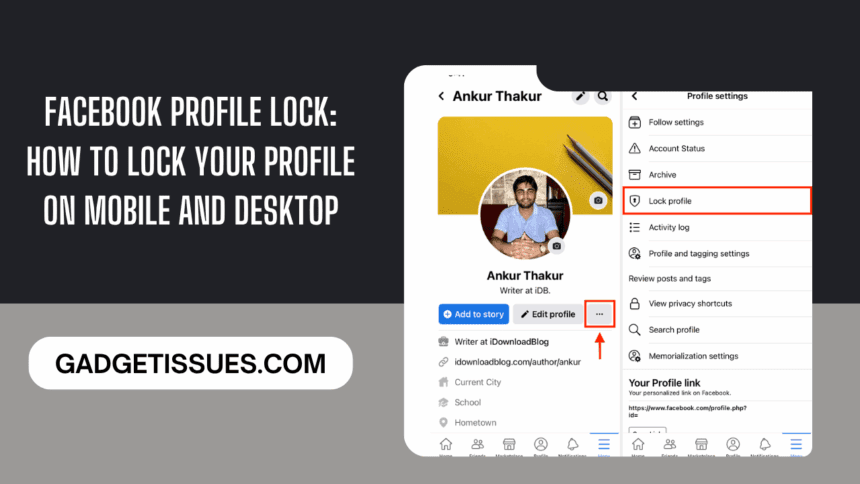
  3. Tap the three-dot menu icon next to the Edit Profile button.
  4. Select Lock Profile from the list of options.
  5. Tap Lock Your Profile at the bottom.
  6. You’ll see a confirmation message explaining what’s restricted. Tap OK to finish.

Your profile is now locked, and only your friends will see your full content.

How to Lock Your Facebook Profile on Desktop

If you prefer using Facebook on a computer, follow these steps:

  1. Open a web browser and go to Facebook.com.
  2. Log in and click your profile picture at the top right.
  3. On your profile page, click the three dots under the Edit Profile button.
  4. Choose Lock Profile.
  5. A pop-up will appear explaining the changes—click Lock Your Profile to confirm.

Benefits of Using Profile Lock

  • Enhanced Privacy: Only friends can see your posts, photos, and stories.
  • Better Control: You decide who gets to access your personal information.
  • Peace of Mind: Reduce the chances of strangers misusing your photos or details.

Also Read : Vivo X Fold 5, X200 FE India Prices Leaked Ahead of July 14 Launch

You Might Also Like

Want to Add Music to Your WhatsApp Status? Here’s How to Make It Sing

Feel Like Facebook’s a Little Too Public? Here’s How to Lock Your Profile and Breathe Easier

Top 5 Smartphone Problems and Their Easy Fixes

Top 5 iPhone Problems and How to Fix Them: Complete Troubleshooting Guide

DIY Guide: How to Fix a Broken Headphone Jack

TAGGED:Facebook Privacy SettingsFacebook Profile LockFacebook Tips and TricksHow to Lock Facebook ProfileLock Profile DesktopLock Profile MobileOnline Security GuideSecure Facebook AccountSocial Media Privacy
Share This Article
Facebook Twitter Copy Link Print
Share
Previous Article M5 MacBook Pro Apple’s M5 MacBook Pro Is Coming This Year And It’s Just the Beginning
Next Article Google Adds Google Adds New Promotional Tabs to Android TV Home Screen

Latest News

How to Spot Hidden Damage After Dropping Your Phone
How to Fix
repairs
10 Common Samsung Phone Repair Problems and Solutions
How to Fix
Green Lines on Phone Screen
What Causes Sudden Green Lines or Black Spots on Your Phone Screen?
Uncategorized
Top Reasons Smartphones Overheat & How to Prevent It
How to Fix
//

“Struggling with slow internet or other gadget problems? Our blog offers step-by-step solutions to common tech issues, helping you troubleshoot and resolve problems quickly and efficiently.”

Quick Link

  • Contact Us
  • Privacy Policy
  • Terms and Conditions
  • Cookie Policy
  • Disclaimer

Read Categories

  • Error Fix
  • How to Fix
  • Tech News
  • Tutorial
  • Uncategorized

Find Us on Socials

Follow US
© 2025 Gasgetissues. All Rights Reserved.
Welcome Back!

Sign in to your account


Lost your password?