
By using this site, you agree to the Privacy Policy and Terms of Use.
Accept

Gadget Issues

Fix Your Gadgets

  • About Us
  • How to Fix
  • Error Fix
  • Tutorial
  • Tech News
© 2025 All Rights Reserved.
Reading: How to Safely Handle a Water-Damaged HP Camera
Share
Sign In
Notification Show More
Font ResizerAa

Gadget Issues

Fix Your Gadgets

Font ResizerAa
  • About Us
  • How to Fix
  • Error Fix
  • Tutorial
  • Tech News
Search
  • About Us
  • How to Fix
  • Error Fix
  • Tutorial
  • Tech News
Have an existing account? Sign In
Follow US
© 2022 Foxiz News Network. Ruby Design Company. All Rights Reserved.
Gadget Issues > Blog > How to Fix > How to Safely Handle a Water-Damaged HP Camera
How to Fix

How to Safely Handle a Water-Damaged HP Camera

skynet
Last updated: April 26, 2025 4:21 am
skynet
Share
3 Min Read
SHARE

Accidentally got your HP camera wet? Whether it’s a built-in laptop webcam or an external USB camera, immediate action can make the difference between a minor inconvenience and permanent damage. Here’s what to do:

Contents
1. Power Off Immediately2. Do Not Attempt to Use It3. Dry the Surface Carefully4. Let It Air Dry Thoroughly (At Least 48 Hours)5. Inspect Before Powering On6. Test the Camera7. Know When to Seek HelpFinal Tip

1. Power Off Immediately

If it’s an external camera, unplug it from your system right away. For built-in webcams, shut down the laptop and disconnect all power sources, including the charger.

2. Do Not Attempt to Use It

Avoid turning the camera or device back on. Even a small amount of moisture inside can short-circuit internal components.

3. Dry the Surface Carefully

Use a soft, lint-free cloth to wipe away any visible water from the device, paying close attention to the lens and connection ports. Be gentle to avoid pushing water deeper into the hardware.

4. Let It Air Dry Thoroughly (At Least 48 Hours)

Place the camera or laptop in a dry, well-ventilated space. Avoid using hairdryers or applying heat directly. For external cameras, placing the device in a sealed container with uncooked rice or silica gel packets can help absorb internal moisture.

5. Inspect Before Powering On
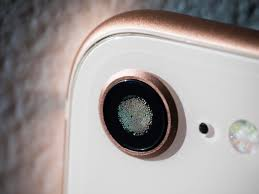
After two full days, check for any remaining signs of moisture. If everything appears dry, you may cautiously reconnect the camera or turn on your laptop to test functionality.

6. Test the Camera

Use your system’s default camera app (like the HP Camera app or Windows Camera) or an online tool to verify whether the camera is working properly. Look for any visual distortion, fogginess, or failure to detect the device.

7. Know When to Seek Help

If the camera fails to turn on, shows a blurry or black screen, or your laptop doesn’t boot properly, consult an authorized HP service center. Attempting further DIY repairs could worsen the issue.

Final Tip

For built-in laptop webcams, internal damage may go beyond the camera itself. If your laptop exhibits unusual behavior after water exposure, it’s safest to have it professionally inspected.

Also Read : What You Should Know Before You Fix Your PlayStation

You Might Also Like

How to Spot Hidden Damage After Dropping Your Phone

10 Common Samsung Phone Repair Problems and Solutions

Top Reasons Smartphones Overheat & How to Prevent It

How to Effectively Remove Water From Your Samsung Phone: A Step-by-Step Guide

How to Fix MacBook Display “Staingate” Issue: A Step-by-Step Guide

TAGGED:CameraMaintenanceCameraRepairDIYRepairElectronicsSafetyGadgetCareHPCameraPhotographyGearRepairGuideTechSupportTechTipsWaterDamagedCameraWaterDamageFix
Share This Article
Facebook Twitter Copy Link Print
Share
Previous Article Screen Cracked? Detailed Guide on How to Deal with a Cracked Screen and No Display”
Next Article Google Pixel 7 Pro Screen Replacement

Latest News

Green Lines on Phone Screen
What Causes Sudden Green Lines or Black Spots on Your Phone Screen?
Uncategorized
The Master Blueprint for 2026: Top 8 Essential Laptop and Computer Repair Tips
How to Fix
Fix a water-damaged phone in 2026 using the silica gel method. Learn why the rice myth fails and follow our 3-phase emergency guide to rescue your device and data.
Don’t Use Rice: The Definitive 2026 Guide to Saving a Water-Damaged Phone
How to Fix
Formatted, fact-checked, and optimized by Gemini AI (2026).
Why Laptop Performance Drops and How Expert Adelaide Services Restore Speed in 2026
How to Fix
//

“Struggling with slow internet or other gadget problems? Our blog offers step-by-step solutions to common tech issues, helping you troubleshoot and resolve problems quickly and efficiently.”

Quick Link

  • Contact Us
  • Privacy Policy
  • Terms and Conditions
  • Cookie Policy
  • Disclaimer

Read Categories

  • Error Fix
  • How to Fix
  • Tech News
  • Tutorial
  • Uncategorized

Find Us on Socials

Follow US
© 2025 Gasgetissues. All Rights Reserved.
Welcome Back!

Sign in to your account


Lost your password?