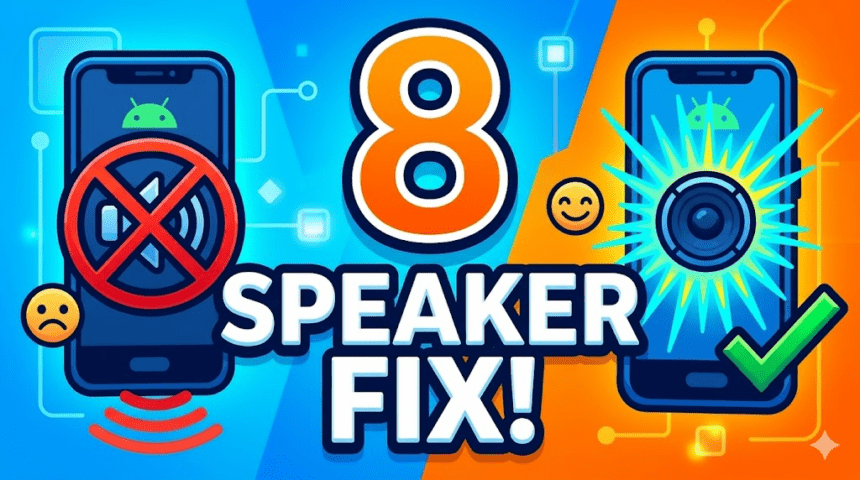
Your Android smartphone is constantly exposed to the environment, making it highly susceptible to dust, lint, and debris. Even if you are obsessed with keeping your devices neat, build-up over time can severely affect your phone’s speaker quality.
Before you grab a Q-Tip and potentially push dirt further into the grill, take a breath. More often than not, a muffled speaker or low volume can be easily tackled at home without having to rush to your nearest service center.
Here are eight easy hacks to get your Android speaker sounding crisp and clear again
1. Check All Your Audio Settings
While this may seem like a no-brainer, our phones often have specific settings enabled that compromise speaker volume.
- Make sure your smartphone isn’t accidentally set to Do Not Disturb (DND).
- Check your volume sliders. Android separates media, ringtone, and alarm volumes. Ensure the Media Volume is maxed out.
- If you’re using a specific app (like Spotify or YouTube), ensure the in-app volume is also turned up.
2. Manually Turn Off Headphone Output
If you are one of the fortunate few who still has a physical headphone jack on your phone, check if your headphones were unplugged correctly. Sometimes, when you remove an aux cable or wired headphones, the Android OS fails to process the event, leaving your smartphone stuck in “headphone mode.”
- The Fix: Try reinserting your headphones, twisting the plug slightly in the jack, and pulling them out again to reset the sensor.
3. Remove Your Phone Case
If your smartphone case is old, bulky, or poorly designed, it might be harboring a lot of dirt and grime. This buildup often blocks your phone’s bottom or top speakers, making it difficult to hear callers or media.
- The Fix: Remove the case completely and test-play a media clip. If the sound improves, thoroughly clean your case with warm soapy water and let it dry before putting it back on.
4. Reboot in Safe Mode
Safe Mode on Android is a fantastic diagnostic tool. It strips your device down to only the essential system software, temporarily disabling all third-party apps. If your speaker works perfectly in Safe Mode, a downloaded app (like a volume booster or equalizer) is likely interfering with your audio.
- Note: The exact button combination to enter Safe Mode varies by manufacturer, but it usually involves holding the Power button and long-pressing the “Power Off” on-screen prompt.
5. Do a Hard Reboot (Factory Reset)
If your speakers worked in Safe Mode but broke again in regular mode, and you cannot find the culprit app, you can try performing a hard reboot (factory reset). This restores your phone to its original out-of-the-box software state, wiping out deep-rooted software glitches.
- Warning: This step will erase all your data! Ensure your photos, contacts, and files are fully backed up to a service like Google One before proceeding.
6. Physically Clean the Speaker
Cleaning your speaker grills can dislodge the debris obstructing your sound.
- Gently blow air into the speaker notch.
- Use a clean, dry, soft-bristled toothbrush to gently scrub the speaker grills. This helps loosen and sweep out pocket lint and crumbs.
- Never use liquid or sharp metal objects (like needles), as these can puncture the delicate speaker mesh.
7. Dry It Out (In Case of a Water Accident)
If your phone was recently dropped in water, the speakers are immediately going to sound muffled or crackly. Do not play loud media while the speaker is soaked, as this can cause permanent damage.
- Let your phone dry out completely by standing it upright in a dry, well-ventilated area.
- Once mostly dry, download a Speaker Cleaner app from the Google Play Store. These apps play specific vibrating acoustics designed to shake residual water out of the speaker cavity.
- Tip: To protect your investment from future liquid damage, consider looking into extended protection like Croma’s ZipCare plans.
8. Address Persistent Software Issues
Sometimes, the problem is a known bug in the operating system. If you recently updated your Android OS or are running a Beta version, there could be a glitch affecting your audio drivers.
- Check for a new system update (Settings > System > Software Update), as the manufacturer may have already released a patch.
- If you have tried all eight steps and the speaker is still dead, it is time to take your smartphone to an authorized service center for a hardware assessment
Also Read : How to Remove Deep Scratches from Phone Screen