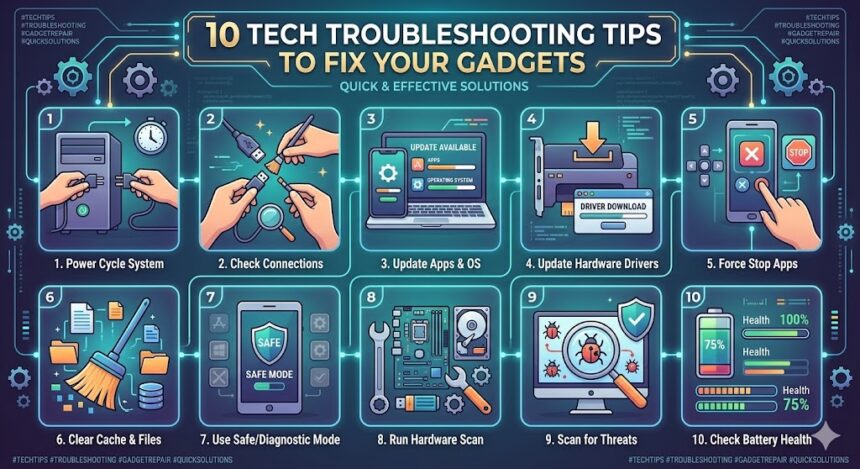
How you fix a technology problem ultimately depends on the specific issue at hand. However, you do not always need an IT degree to get your devices up and running. Many of the most common technology problems have simple, highly effective solutions that you can do at home.
Here are 10 common troubleshooting tricks every device owner needs to know.
1. Turn It Off and On Again
It might be a running joke at this point, but “turning it off and on again” is the absolute best first step for life’s tech problems. Because many issues stem from background software glitches, rebooting your computer or smartphone eliminates the problem by letting the system start over.
Restarting also helps diagnose whether your problem is hardware or software. If your computer is lagging, a restart will usually fix it if it is a software hang-up. If the problem persists, you might be looking at failing hardware, like a faulty stick of RAM.
- For unresponsive devices: You can usually force a shutdown by holding the power button. On an iPhone, you need to hold the power button and the volume up or down button simultaneously. Check out Apple’s official force restart guide for specifics.
- For smart home devices: For smart speakers or modern TVs that never truly power off, simply unplug the power cord, wait 30 seconds, and plug it back in.
2. Check for the Latest Software Updates
A persistent bug is not always a sign of failing hardware. Faulty code can cause issues that keep resurfacing until the developer patches them out.
It is generally a good idea to update your gadgets as soon as a software update becomes available. This rule also applies to accessories. For example, Xbox Series X|S and PlayStation 5 controllers receive over-the-air firmware updates to fix connectivity and drift issues.
3. Reset to Factory Settings
Virtually every modern gadget can be wiped clean and reset to its factory settings. Any smart device giving you chronic issues—such as network routers, smart TVs, wearables, and gaming consoles—can benefit from a hard reset.
Be aware that you will lose any user data or preferences you have saved. In the case of a smartphone, make sure your photo library is backed up to a service like Google Photos or iCloud before proceeding.
4. Bluetooth Troubles? Pair It Again
Bluetooth can be flaky. Devices frequently forget they are paired or get stuck in a connection limbo. The fix is incredibly easy: pair it again.
Simply go to your host device (like your phone or computer) and select “Forget this device.” Then, put your accessory back into pairing mode and reconnect. Note that some wireless earbuds, like Apple AirPods, will forget custom tap controls when you do this, so you will need to reconfigure them in your settings.
5. Give Safe Mode a Shot
Safe mode boots your operating system with the bare minimum of software required to run. It ignores third-party drivers, startup programs, and kernel extensions that might be causing system crashes.
- Windows Safe Mode: Helps you uninstall problematic software in a stable environment.
- Mac Safe Mode: Initiating safe mode on macOS automatically checks your startup disk for integrity and repairs directory issues along the way.
6. Connections and Cable Woes? Swap or Replace
Cables are a massive point of failure. USB charging cables endure constant bending and yanking, making them highly susceptible to internal fraying.
If a device won’t connect or charge, replacing the cable is the cheapest and easiest diagnostic step. This applies to network cables dropping your internet connection and HDMI cables failing to send a signal to your monitor. Do not fall for overpriced “premium” cables; standard, certified cables work perfectly for digital signals.
7. Software Problem? Try Reinstalling the App
If a specific application is crashing and a device restart did not help, reinstalling the software is your next best bet.
Completely uninstall the application to clear out its cached data and corrupted preference files. Then, download a fresh copy from the developer’s website or your device’s official app store.
8. Gadget Won’t Turn On? Charge It for a While
When you retrieve an old device from a drawer after months of inactivity, it will likely be dead as a doornail. Even when you plug it in, the screen might remain blank for several minutes.
When lithium-ion batteries are completely depleted, they require a slow “trickle charge” to avoid damaging the cells before they can power the screen. Leave the “dead” device connected to a reliable power source for a few hours before giving up on it completely.
9. Wet Gadget? Hold the Rice
It is a common myth, but putting a wet phone in rice does not actually help dry out your gadgets. In fact, rice dust can get lodged in charging ports and behind buttons, causing even more damage.
The DIY repair experts at iFixit recommend turning the device off immediately and removing the battery if possible to prevent short circuits. Instead of rice, use high-concentration isopropyl alcohol to displace the water and clean the motherboard, which stops corrosion. Let the device sit in a dry, well-ventilated area for at least 48 hours before attempting to turn it on.
10. Buttons Stuck or Not Registering? Clean It Out
If you have spilled a sticky drink on your keyboard or gaming controller, you can usually clean it yourself without paying for a repair.
Avoid using water. Instead, use a Q-tip dipped in isopropyl alcohol (90% concentration or higher). The alcohol breaks down the sticky residue and evaporates rapidly without leaving moisture behind to fry the circuitry.
Also Read : Adobe Firefly Arrives for Android and iOS Devices, Delivering Advanced AI Tools at Your Fingertips