By using this site, you agree to the Privacy Policy and Terms of Use.
Accept

Gadget Issues

Fix Your Gadgets

  • About Us
  • How to Fix
  • Error Fix
  • Tutorial
  • Tech News
© 2025 All Rights Reserved.
Reading: Solution for OnePlus Nord CE 2 Touchscreen Not Responding but Display Working
Share
Sign In
Notification Show More
Font ResizerAa

Gadget Issues

Fix Your Gadgets

Font ResizerAa
  • About Us
  • How to Fix
  • Error Fix
  • Tutorial
  • Tech News
Search
  • About Us
  • How to Fix
  • Error Fix
  • Tutorial
  • Tech News
Have an existing account? Sign In
Follow US
© 2022 Foxiz News Network. Ruby Design Company. All Rights Reserved.
Gadget Issues > Blog > How to Fix > Solution for OnePlus Nord CE 2 Touchscreen Not Responding but Display Working
How to Fix

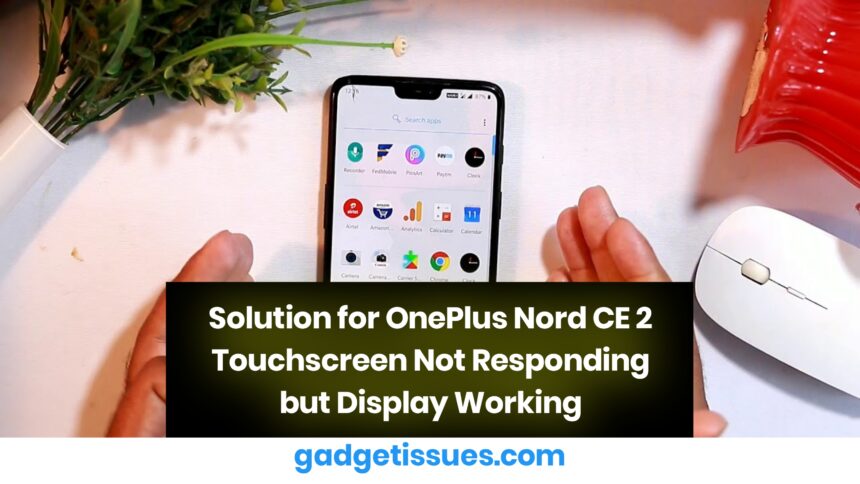
Solution for OnePlus Nord CE 2 Touchscreen Not Responding but Display Working

skynet
Last updated: April 19, 2025 3:09 am
skynet
Share
2 Min Read
SHARE

If you’re facing an issue where your OnePlus Nord CE 2’s display is turning on but the touchscreen is completely unresponsive, here’s a step-by-step guide to diagnose and potentially fix the problem. This is based on personal experience and known solutions from trusted sources.

Symptoms:

  • Display lights up normally
  • No cracks or damage
  • Touch not responding at all
  • Buttons (volume, power) and charging work fine
  • Device restarts but issue persists

Probable Causes:

  1. Digitizer failure (hardware fault)
  2. Software glitch or firmware bug
  3. Loose internal display connection
  4. Moisture or static interference

Solutions to Try:
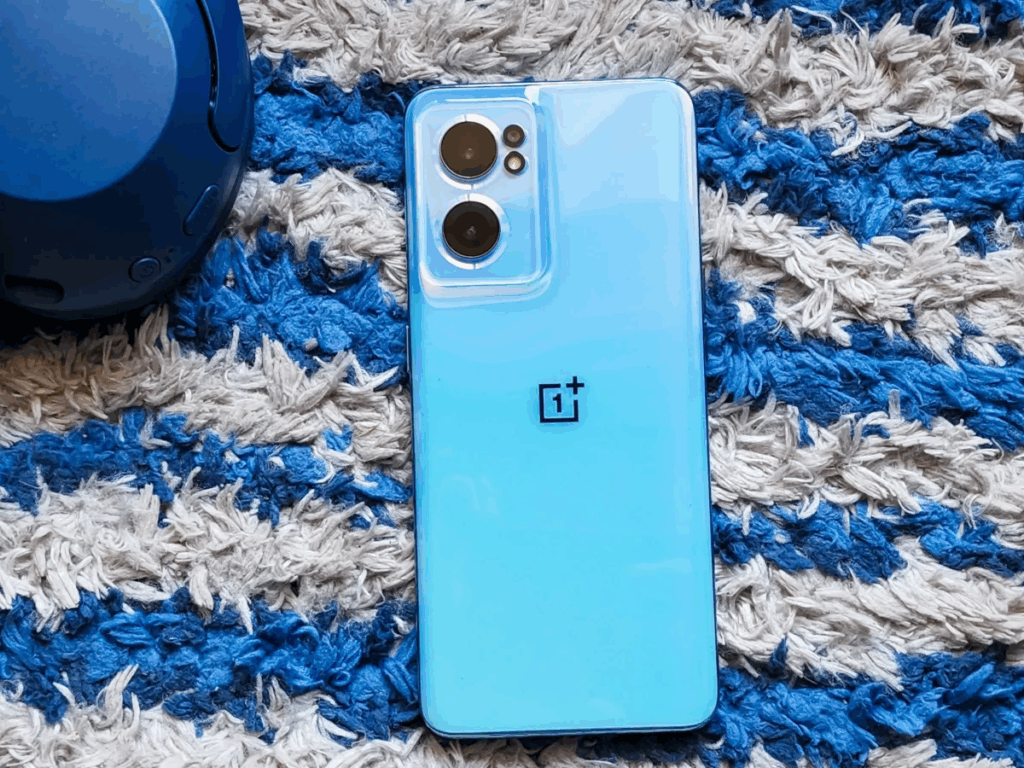
  1. Force Restart the Phone Press and hold the Power + Volume Down button for 10–15 seconds to force restart the device. Sometimes this clears temporary software glitches.
  2. Connect an OTG Mouse Use a USB-C OTG adapter and connect a mouse. If the pointer appears and functions normally, it confirms the issue is with the touchscreen, not the system.
  3. Safe Mode Boot If possible, boot into Safe Mode using the mouse:
    • Long press the Power button until the reboot option appears
    • Long press “Power off” and select “Boot to Safe Mode” If the touch works in Safe Mode, it could be a third-party app conflict.
  4. Software Update or Reset Navigate to Settings > System > Software Update (using OTG mouse) and check for any updates. If none are available, you can back up your data and try a factory reset.
  5. Visit Authorized Service Center If none of the above works, it’s most likely a digitizer or internal connection issue. Visit an authorized OnePlus service center for proper diagnosis and repair. In many cases, the digitizer may need replacement, which is often covered under warranty if there’s no physical damage.

Conclusion

This issue is often hardware-related, but following the above steps can help you confirm that before spending money on repairs. Hope this helps someone facing the same problem.

Also Read : How to Seamlessly Connect Your PS5 Controller to Your MacBook

You Might Also Like

8 Ways to Troubleshoot Any Speaker Issues on Your Android Phone

Free Up Storage Space on Your Phone in 6 Easy Steps

How to Effectively Remove Water From Your Samsung Phone: A Step-by-Step Guide

How to Fix MacBook Display “Staingate” Issue: A Step-by-Step Guide

How to Fix a Water-Damaged Charging Port

TAGGED:Check for Software UpdatesClear Cache PartitionInspect Screen Protector or Case InterferencePerform a Factory Reset as Last ResortRestart or Force Restart the DeviceSeek Professional Repair if Hardware DamagedTroubleshooting Touchscreen Issues
Share This Article
Facebook Twitter Copy Link Print
Share
Previous Article Top 4 Things To Consider Before Choosing an Online Mobile Repair Shop
Next Article OnePlus 13 – Verified Guide for Disassembly, Repair, and Troubleshooting

Latest News

Small visual elements like gears, data points, and element symbols
How To Fix Bluetooth Not Working After Phone Update
How to Fix
why is my phone not connecting to wifi
Why Won’t My Android Phone Connect to Wi-Fi? (And How to Fix It)
How to Fix
magnetic USB C cables
Why You Need to Stop Using Magnetic USB-C Cables Immediately
How to Fix
Troubleshooting Tips to Fix Your Gadgets
10 Tech Troubleshooting Tips to Fix Your Gadgets
How to Fix
//

“Struggling with slow internet or other gadget problems? Our blog offers step-by-step solutions to common tech issues, helping you troubleshoot and resolve problems quickly and efficiently.”

Quick Link

  • Contact Us
  • Privacy Policy
  • Terms and Conditions
  • Cookie Policy
  • Disclaimer

Read Categories

  • Error Fix
  • How to Fix
  • Tech News
  • Tutorial
  • Uncategorized

Find Us on Socials

Follow US
© 2025 Gasgetissues. All Rights Reserved.
Welcome Back!

Sign in to your account


Lost your password?