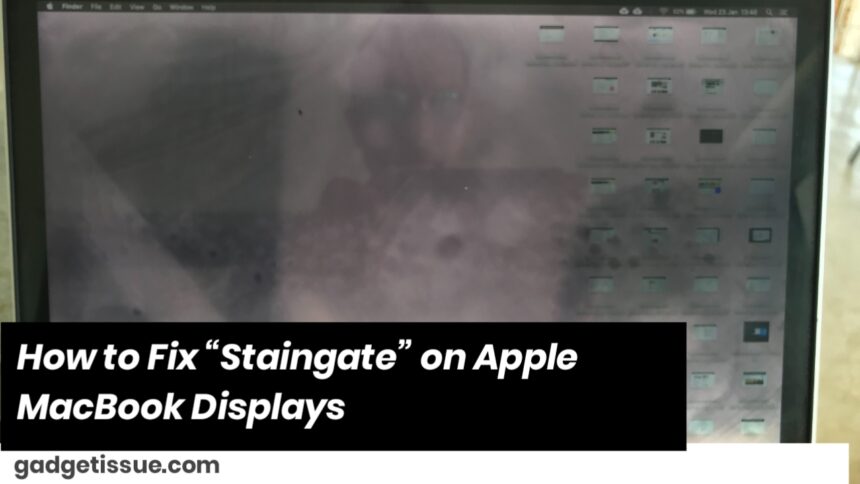
“Staingate” is a term used to describe an issue where MacBook screens develop unwanted discoloration, smudges, or stains, usually around the edges of the screen. This issue is often caused by a coating on the MacBook display that deteriorates over time due to normal usage, or accidental contact with oily substances such as fingerprints.
Contents
1. Check for Apple’s Extended Warranty (if applicable)2. Clean the Display Properly3. Apply a Display Protector4. Avoid Excessive Pressure on the Screen5. Use a Keyboard Cover6. Replace the Display (if necessary)7. DIY Coating Repair (Not Recommended for Most Users)8. Preventative Measures for the Future9. Contact Apple SupportConclusion:
Here are a few ways you can address or mitigate this issue:
1. Check for Apple’s Extended Warranty (if applicable)
- In some cases, Apple has acknowledged the issue with certain MacBook models, especially those made before 2015. If your MacBook is still under warranty, or if you purchased AppleCare, you can contact Apple Support to check if your device is eligible for a free screen replacement.
2. Clean the Display Properly
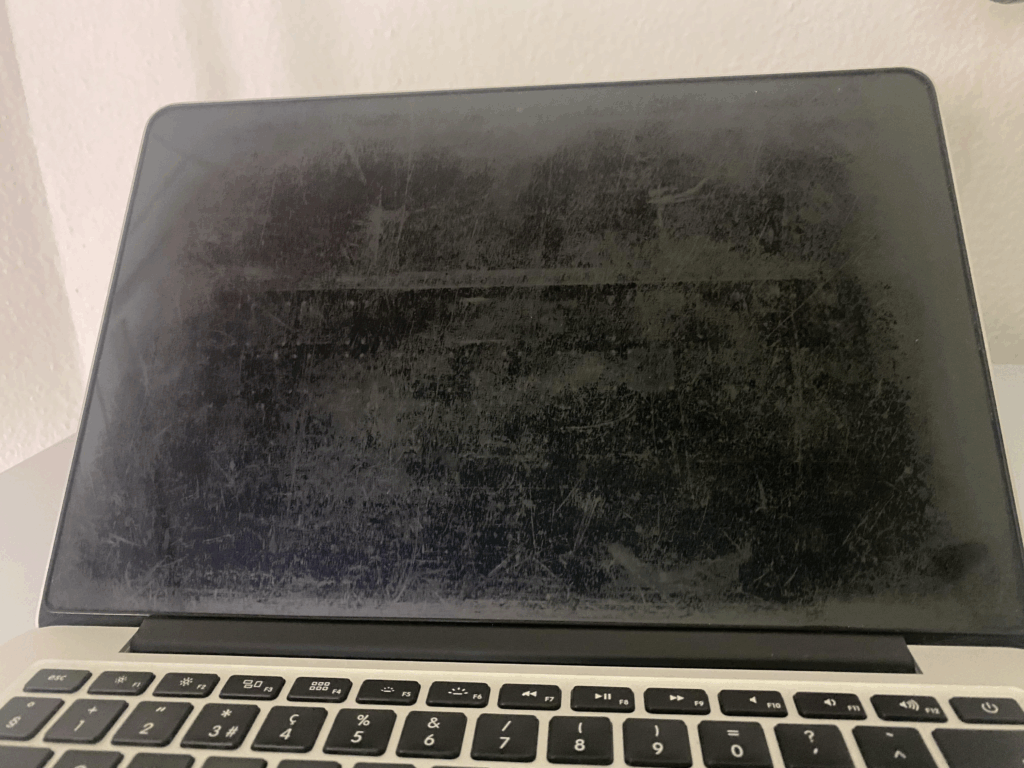
- Use Microfiber Cloth: Use a clean, dry microfiber cloth to wipe off the screen gently. This may help remove any fingerprints or oils that have contributed to the stains.
- Use Screen Cleaner: If there’s stubborn dirt or smudges, you can use a screen-safe cleaner. Apply it on the cloth (never directly on the screen) and gently wipe the screen. Be sure to follow the manufacturer’s instructions.
3. Apply a Display Protector
- Screen Protector: Consider installing a protective film over the screen to prevent further contact with oils and prevent the staining issue from worsening. This won’t fix the existing stains but can help protect the screen in the future.
4. Avoid Excessive Pressure on the Screen
- Be Gentle: Excessive pressure on the MacBook screen can accelerate the damage to the coating. Always ensure that when you close your MacBook, there’s no pressure on the screen from objects on the keyboard.
5. Use a Keyboard Cover
- Protect the Screen: The oil and dirt from the keyboard can often transfer to the display and contribute to the staining. A silicone keyboard cover can help reduce this transfer.
6. Replace the Display (if necessary)
- If the issue persists and Apple is unwilling or unable to replace your screen for free (if it’s out of warranty), you may need to consider replacing the display yourself or through a third-party repair service. Be aware that this can be costly, and it’s always recommended to get a certified professional to perform the replacement.
7. DIY Coating Repair (Not Recommended for Most Users)
- Coating Reapplication: Some users have tried to reapply a coating or solution to the display to repair the damage. However, this can be risky and may void warranties. It’s generally not recommended unless you’re confident in your technical skills and are willing to take the risk.
8. Preventative Measures for the Future
- Keep Hands Clean: Wash your hands before using your MacBook to prevent oils and dirt from transferring to the screen.
- Store Properly: When not in use, store your MacBook in a case to protect the display from accidental contact with objects that may cause further damage.
9. Contact Apple Support
- If you’re unable to fix the problem or if you want to explore repair options, don’t hesitate to contact Apple Support. In some cases, they may offer repairs even if your device is out of warranty, especially if the “Staingate” issue is severe or widespread.
Conclusion:
While “Staingate” on MacBook screens can be frustrating, the issue can often be prevented with proper care and maintenance. If you are unable to fix the issue on your own, contacting Apple or a certified technician is the best course of action to determine your repair options.
Also Read : Google Pixel 3 XL Teardown Analysis