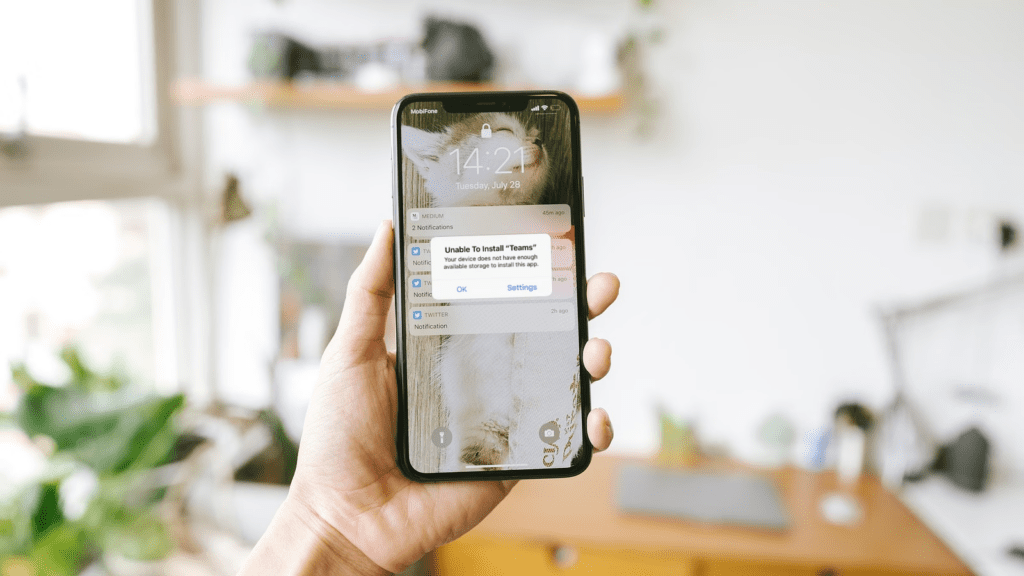
Have you ever received those dreaded pop-ups? “iPhone storage full.” “Insufficient storage available.” “Storage space running out.” It is incredibly frustrating. Suddenly, you can’t take new photos, download that app you need, or even update your operating system. Your phone might even start running slower than usual.
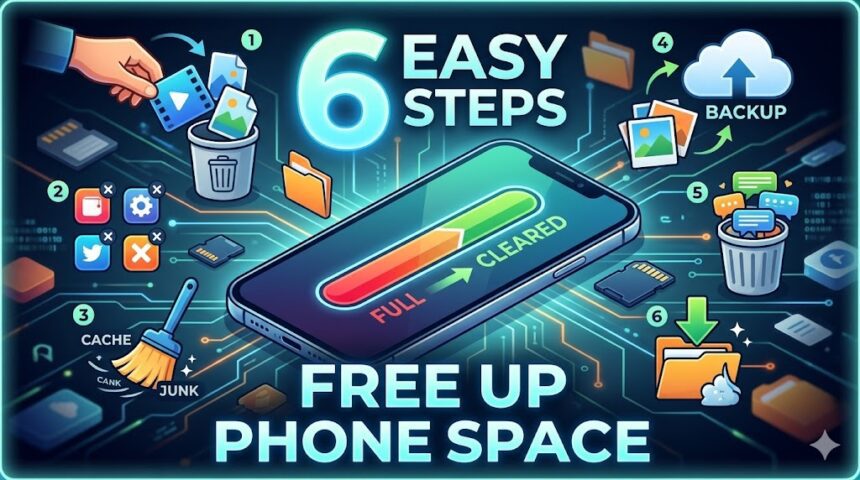
So, how do you clear storage on your iPhone or Android device and get everything back to normal? Follow these six easy steps to free up space and make room for new memories.
1. Review Your Storage Use
Knowledge is power. The first step to decluttering your phone is to see exactly how your storage is being used. Both iOS and Android make this easy by providing an overview of what is on your phone, how much storage each category takes up, and even smart recommendations for freeing up space.
- How to clear storage on an iPhone: Go to Settings > General > iPhone Storage. Here, you will see a color-coded bar chart and a list of Recommendations (e.g., “Review Large Attachments”). Tapping these recommendations is the fastest way to solve immediate storage problems.
- How to clear storage on Android: Go to Settings > Storage. (On Samsung devices, you might find this under Battery and device care). Many Android phones feature a Free up space button that automatically identifies junk files you can do without.
Good to know: Some Android phones feature a microSD card slot. If your phone has one, you can purchase a memory card to instantly expand your physical storage!
2. Review and Manage Your Apps
On your phone’s storage page, you will see a list of installed apps sorted by size. On some phones, it also shows the date you last used the app—a great clue as to whether you actually need it.
You have three options to manage app storage:
- Delete unwanted apps: Tap an app and select Delete or Uninstall to remove the app and all its data completely.
- Offload apps (iPhone): This option uninstalls the app itself but securely holds onto your personal data. It frees up about half the space, and if you ever reinstall the app, you can pick up exactly where you left off.
- Delete app data: Have you downloaded podcast episodes, Spotify playlists, or Netflix shows for offline viewing? You can delete this downloaded media from within those specific apps without deleting the app itself.
3. Optimize Your Photo Storage
When you checked your storage, you were probably surprised by how many gigabytes your photos and videos take up! This is where cloud storage becomes your best friend.
- Use Cloud Backup: Services like the mail.com Cloud, Google Photos, or iCloud allow you to back up your media. Once safely in the cloud, you can delete the local copies from your physical device.
- Optimize iPhone Storage: If you use iCloud, go to Settings > Photos and select Optimize iPhone Storage. This brilliant feature keeps smaller, lower-resolution versions of your photos on your phone to save space, while the full-resolution originals remain safe in iCloud.
- Google Photos “Free Up Space”: On Android, open the Google Photos app and tap your profile icon. Select Free up space to safely remove photos from your device that have already been backed up to your Google account.
4. Clear the Cache
Apps and web browsers save temporary files (like search history, login tokens, and images) so pages load faster the next time you visit. This is called “cache.” Over time, cached data can balloon and eat up valuable megabytes.
- Clearing iPhone cache: Apple doesn’t have a “clear all” button for cache. However, you can clear your browser’s clutter by going to Settings > Safari > Clear History and Website Data.
- Clearing Android cache: Go to Settings > Apps and tap on a specific app (like Chrome or TikTok). Tap Storage, then hit Clear cache.
5. Delete Old Downloads
While browsing the internet or checking emails, you likely downloaded PDF restaurant menus, old plane tickets, or work documents that are still sitting idle in your phone’s storage.
- iPhone: Open the Files app, go to On My iPhone, and tap the Downloads folder. Tap Edit to select and delete files you no longer need.
- Android: Open the My Files (or Files by Google) app and tap Downloads. Review the list and delete old documents.
6. Delete Media in Message Apps
Believe it or not, the GIFs, voice notes, and memes your friends text you can take up massive amounts of storage. This is especially true if your messaging apps are set to automatically save media to your camera roll.
- iMessage (iPhone): Go to Settings > General > iPhone Storage > Messages. From here, you can easily review and delete large attachments, photos, and videos.
- Stop Auto-Saving in WhatsApp (Android): Open WhatsApp > Tap the three-dot menu > Settings > Chats > Toggle off Media visibility.
- Stop Auto-Saving in WhatsApp (iPhone): Open WhatsApp > Tap Settings > Chats > Toggle off Save to Camera Roll.
Also Read : How to Remove Deep Scratches from Phone Screen