By using this site, you agree to the Privacy Policy and Terms of Use.
Accept

Gadget Issues

Fix Your Gadgets

  • About Us
  • How to Fix
  • Error Fix
  • Tutorial
  • Tech News
© 2025 All Rights Reserved.
Reading: Dropped Your Phone and the Screen Went Black? Here’s What to Do
Share
Sign In
Notification Show More
Font ResizerAa

Gadget Issues

Fix Your Gadgets

Font ResizerAa
  • About Us
  • How to Fix
  • Error Fix
  • Tutorial
  • Tech News
Search
  • About Us
  • How to Fix
  • Error Fix
  • Tutorial
  • Tech News
Have an existing account? Sign In
Follow US
© 2022 Foxiz News Network. Ruby Design Company. All Rights Reserved.
Gadget Issues > Blog > How to Fix > Dropped Your Phone and the Screen Went Black? Here’s What to Do
How to Fix

Dropped Your Phone and the Screen Went Black? Here’s What to Do

skynet
Last updated: April 29, 2025 5:17 am
skynet
Share
3 Min Read
SHARE

Dropped your phone and now the screen is black, even though the device still seems to work? You’re not alone. This is a common issue, and the good news is your phone may still be functional internally. Here’s how to troubleshoot and what to do next.

Contents
1. Confirm If the Phone Is Still Working2. Try a Force Restart3. Shine a Flashlight on the Screen4. Connect to an External Display (If Possible)5. Get the Display RepairedFinal Advice

1. Confirm If the Phone Is Still Working

Check for these signs:

  • The phone vibrates when you press the power button or receive calls.
  • You hear notification sounds or alarms.
  • The charging light turns on when plugged in.

If yes, your phone is working, but the screen or display connector is likely damaged.

2. Try a Force Restart

Sometimes, the display might crash but can be reset with a force restart.
Try this based on your phone type:

  • Android: Press and hold Power + Volume Down for 10–15 seconds.
  • iPhone: Quickly press Volume Up, then Volume Down, then hold the Side button until the Apple logo appears.

If the screen remains black, continue below.

3. Shine a Flashlight on the Screen

Point a flashlight at the screen from different angles. If you faintly see the icons or home screen, it means the backlight is damaged, not the full display.

4. Connect to an External Display (If Possible)

For Android phones that support USB-C to HDMI, or Samsung DeX, try connecting to a monitor or TV. If you see your phone’s display on the external screen, it’s definitely a screen issue.

5. Get the Display Repaired
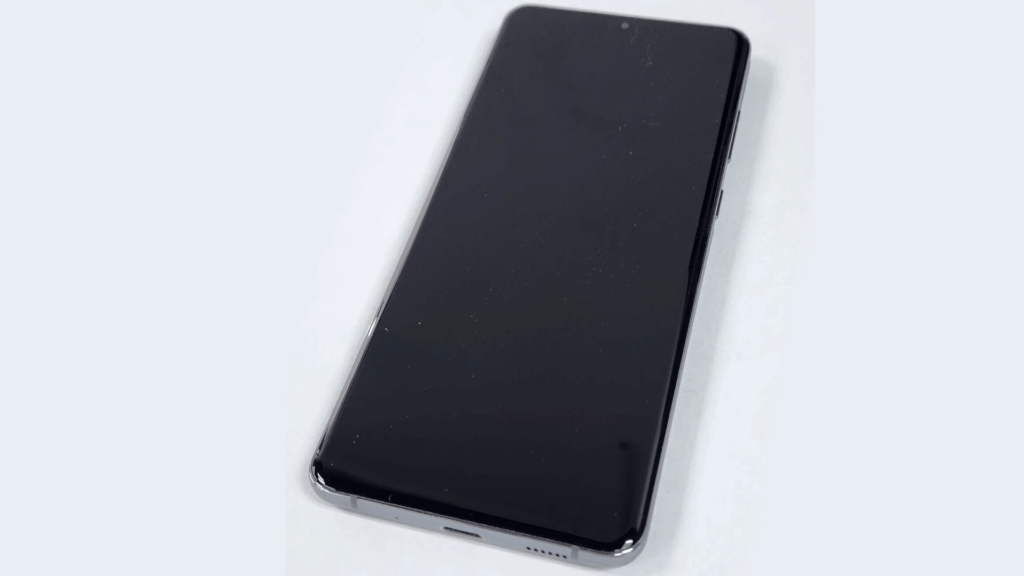
If none of the above helps, the issue is likely one of the following:

  • Broken display panel (LCD/OLED)
  • Loose or damaged display connector inside the phone
  • Backlight failure (common in LCDs)

Visit a trusted repair center or service provider. Most of the time, only the screen needs replacement—not the entire phone.

Final Advice

  • Don’t try to pry open the phone unless you have experience with phone repairs.
  • If under warranty or insurance, check your options—many plans cover accidental drops.
  • Back up your data using a PC connection if the phone is still responsive.

Also Read : Common iPhone Damages and How to Fix Them

You Might Also Like

How to Effectively Remove Water From Your Samsung Phone: A Step-by-Step Guide

How to Fix MacBook Display “Staingate” Issue: A Step-by-Step Guide

How to Fix a Water-Damaged Charging Port

How to Boot Your Samsung Galaxy in Safe Mode – A Step-by-Step Guide

Can’t Boot from USB Flash Drive – Troubleshooting Guide

TAGGED:android screen fixBlack Screen Fixbroken screen helpdead display phoneiphone black screenphone display problemphone droppedphone repair tips phone won’t displayphone screen blackphone screen crackedphone screen issue fix black screenPhone Troubleshootingscreen damage fixScreen Not Workingtech support phone mobile screen gone blackwhat to do black screen
Share This Article
Facebook Twitter Copy Link Print
Share
Previous Article Phone Won’t Turn On? Here’s What to Do When Your Device is Completely Dead
Next Article Why Your Fingerprint Sensor Isn’t Working After Screen Replacement

Latest News

How to Fix “USB Device Not Recognized”: A Complete Troubleshooting Guide
How to Fix
Stable Sight: 5 Ways to Stop Your Laptop Screen from Flickering.
How to Stop Laptop Screen Flickering: A Step-by-Step Fix Guide
How to Fix
Android speaker
8 Ways to Troubleshoot Any Speaker Issues on Your Android Phone
How to Fix
Phone Storage Full Fix
Free Up Storage Space on Your Phone in 6 Easy Steps
How to Fix
//

“Struggling with slow internet or other gadget problems? Our blog offers step-by-step solutions to common tech issues, helping you troubleshoot and resolve problems quickly and efficiently.”

Quick Link

  • Contact Us
  • Privacy Policy
  • Terms and Conditions
  • Cookie Policy
  • Disclaimer

Read Categories

  • Error Fix
  • How to Fix
  • Tech News
  • Tutorial
  • Uncategorized

Find Us on Socials

Follow US
© 2025 Gasgetissues. All Rights Reserved.
Welcome Back!

Sign in to your account


Lost your password?