By using this site, you agree to the Privacy Policy and Terms of Use.
Accept

Gadget Issues

Fix Your Gadgets

  • About Us
  • How to Fix
  • Error Fix
  • Tutorial
  • Tech News
© 2025 All Rights Reserved.
Reading: Google Pixel Touchscreen Not Working? How to Fix It
Share
Sign In
Notification Show More
Font ResizerAa

Gadget Issues

Fix Your Gadgets

Font ResizerAa
  • About Us
  • How to Fix
  • Error Fix
  • Tutorial
  • Tech News
Search
  • About Us
  • How to Fix
  • Error Fix
  • Tutorial
  • Tech News
Have an existing account? Sign In
Follow US
© 2022 Foxiz News Network. Ruby Design Company. All Rights Reserved.
Gadget Issues > Blog > How to Fix > Google Pixel Touchscreen Not Working? How to Fix It
How to Fix

Google Pixel Touchscreen Not Working? How to Fix It

hawk
Last updated: February 25, 2026 9:39 am
hawk
Share
3 Min Read
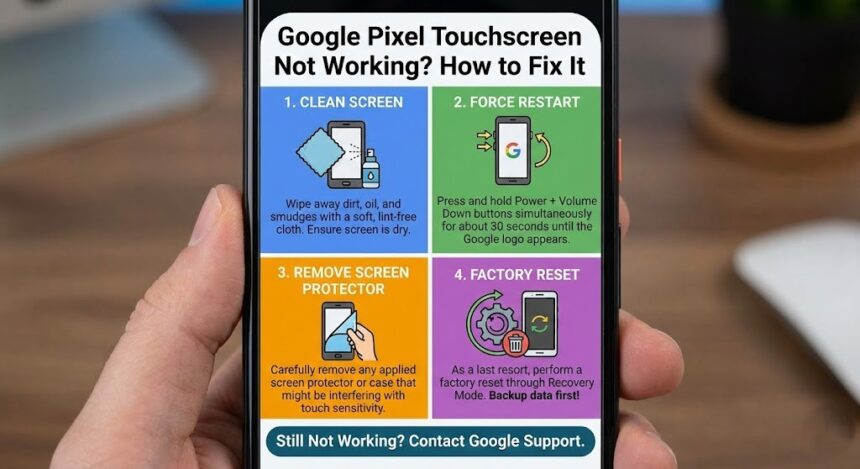
A frustrated person repeatedly tapping an unresponsive Google Pixel smartphone screen.
SHARE

An unresponsive Google Pixel touchscreen causes massive daily frustration. Therefore, you must quickly understand the exact root cause. Consequently, this comprehensive guide highlights effective DIY troubleshooting steps today. Furthermore, we explore professional repair options from SAM Phone Repair.
Contents
Why Do Pixel Touchscreens Fail?Easy DIY Troubleshooting StepsWhen to Seek Professional HelpPrevent Future Screen Issues

Why Do Pixel Touchscreens Fail?

Several specific factors actively ruin your daily touch experience.

  • Physical Damage: First, accidental drops easily crack the delicate glass screen. Furthermore, heavy impacts destroy vital internal hardware components.
  • Software Glitches: Operating system bugs frequently freeze your active display. Next, conflicting background apps cause severe touch unresponsiveness.
  • Moisture Exposure: Contact with water ruins sensitive touchscreen digitizers immediately. Consequently, high humidity levels interfere with normal phone operations.
  • Hardware Wear: Finally, internal electronic components naturally degrade over time. Thus, older phones frequently experience annoying touch issues.

Easy DIY Troubleshooting Steps

Try these simple software fixes before spending any money.

  • Restart Your Device: First, press and hold the power button firmly. Hold it for 30 seconds until the device restarts. Ultimately, this simple action resolves many minor software glitches.
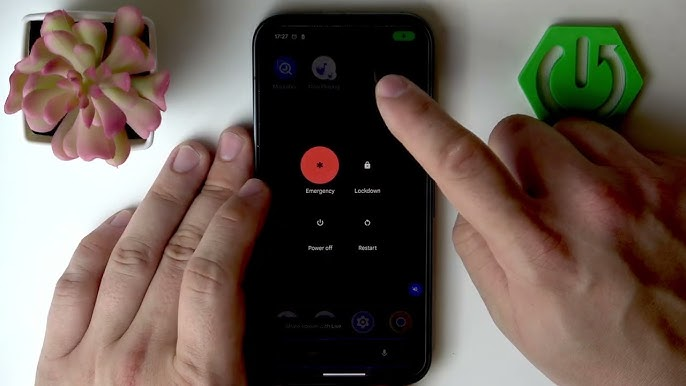
  • Boot into Safe Mode: Safe Mode actively disables problematic third-party applications. Hold the power button until the power options appear. Next, touch and hold the “Power off” prompt. Finally, tap “OK” when the Safe Mode option appears. Does the screen work now? Therefore, a recently installed app caused your problem.
  • Check Software Updates: Developers frequently release important system bug fixes. Therefore, install the newest software version immediately.
  • Perform a Factory Reset: A complete reset eliminates incredibly stubborn software bugs. However, you must back up your data beforehand.

When to Seek Professional Help

Did those troubleshooting steps fail completely? Consequently, you likely face a serious hardware defect. Attempting dangerous DIY repairs easily voids your official warranty. Therefore, you should consult specialized repair experts immediately.

Residents in Adelaide can visit SAM Phone Repair. Their skilled technicians quickly diagnose unresponsive Google Pixel screens. Specifically, they utilize high-quality replacement parts and advanced techniques.
Prevent Future Screen Issues

You can easily minimize future hardware risks today. First, apply a tempered glass screen protector immediately. Next, buy a durable case to survive accidental drops. Furthermore, keep your phone far away from water. Finally, update your software frequently to prevent annoying bugs.

Also Read : 9 Amazing Open Source Operating Systems That Aren’t Linux
You Might Also Like

How to Effectively Remove Water From Your Samsung Phone: A Step-by-Step Guide

How to Fix MacBook Display “Staingate” Issue: A Step-by-Step Guide

How to Fix a Water-Damaged Charging Port

How to Boot Your Samsung Galaxy in Safe Mode – A Step-by-Step Guide

Can’t Boot from USB Flash Drive – Troubleshooting Guide

TAGGED:fix Pixel screenGoogle Pixel touchscreen not workingphone repair Adelaideunresponsive touch screen
Share This Article
Facebook Twitter Copy Link Print
Share
Previous Article A person carefully using a metal ejector tool to open a smartphone SIM tray. How to Fix a Jammed SIM Tray Without Damaging Your Phone
Next Article A professional watchmaker using precision tools to repair the intricate internal mechanics of a luxury mechanical watch. Common Watch Problems and How to Fix Them

Latest News

How to Fix “USB Device Not Recognized”: A Complete Troubleshooting Guide
How to Fix
Stable Sight: 5 Ways to Stop Your Laptop Screen from Flickering.
How to Stop Laptop Screen Flickering: A Step-by-Step Fix Guide
How to Fix
Android speaker
8 Ways to Troubleshoot Any Speaker Issues on Your Android Phone
How to Fix
Phone Storage Full Fix
Free Up Storage Space on Your Phone in 6 Easy Steps
How to Fix
//

“Struggling with slow internet or other gadget problems? Our blog offers step-by-step solutions to common tech issues, helping you troubleshoot and resolve problems quickly and efficiently.”

Quick Link

  • Contact Us
  • Privacy Policy
  • Terms and Conditions
  • Cookie Policy
  • Disclaimer

Read Categories

  • Error Fix
  • How to Fix
  • Tech News
  • Tutorial
  • Uncategorized

Find Us on Socials

Follow US
© 2025 Gasgetissues. All Rights Reserved.
Welcome Back!

Sign in to your account


Lost your password?