By using this site, you agree to the Privacy Policy and Terms of Use.
Accept

Gadget Issues

Fix Your Gadgets

  • About Us
  • How to Fix
  • Error Fix
  • Tutorial
  • Tech News
© 2025 All Rights Reserved.
Reading: How to Fix a Computer with No Operating System
Share
Sign In
Notification Show More
Font ResizerAa

Gadget Issues

Fix Your Gadgets

Font ResizerAa
  • About Us
  • How to Fix
  • Error Fix
  • Tutorial
  • Tech News
Search
  • About Us
  • How to Fix
  • Error Fix
  • Tutorial
  • Tech News
Have an existing account? Sign In
Follow US
© 2022 Foxiz News Network. Ruby Design Company. All Rights Reserved.
Gadget Issues > Blog > How to Fix > How to Fix a Computer with No Operating System
How to Fix

How to Fix a Computer with No Operating System

skynet
Last updated: May 15, 2025 7:03 am
skynet
Share
2 Min Read
SHARE

If your computer shows an error like “No Operating System Found” or simply won’t boot, it usually means the system can’t find Windows (or another OS) to start. Here’s how you can troubleshoot and fix it step-by-step:

Contents
Step 1: Check BIOS/UEFI SettingsStep 2: Check Hard Drive ConnectionStep 3: Run Startup Repair (for Windows)Step 4: Reinstall the Operating SystemStep 5: Test the Hard DriveStep 6: Replace the Drive or Get Help

Step 1: Check BIOS/UEFI Settings

  1. Restart your computer.
  2. Press the required key to enter BIOS/UEFI (usually F2, F10, Delete, or Esc).
  3. Go to the Boot Order / Boot Priority section.
  4. Make sure your hard drive (or SSD) is listed and set as the first boot device.

Step 2: Check Hard Drive Connection

If you’re using a desktop or a serviceable laptop:

  • Turn off your computer and unplug it.
  • Open the case and make sure the hard drive cables are securely connected.

Step 3: Run Startup Repair (for Windows)

If your system had Windows before:

  1. Create a Windows bootable USB using Microsoft’s official tool.
  2. Boot from the USB by pressing the boot menu key (like F12).
  3. Select Repair your computer > Troubleshoot > Startup Repair.

Step 4: Reinstall the Operating System
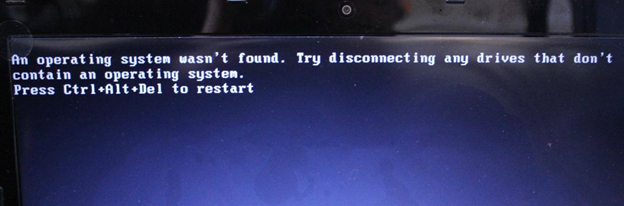
If the OS is missing or corrupted, you may need to reinstall it.

For Windows:

  1. Create a bootable USB drive with Windows from Microsoft.
  2. Boot from USB.
  3. Choose “Install Now” and follow the prompts.

For Linux (like Ubuntu):

  1. Download Ubuntu from ubuntu.com.
  2. Create a bootable USB with a tool like Rufus.
  3. Boot from USB and install Ubuntu.

Step 5: Test the Hard Drive

If none of the above work, your hard drive might be faulty.

  1. Use a tool like Hiren’s BootCD or GParted Live USB to boot into a diagnostic environment.
  2. Run SMART tests or disk scans to check drive health.

Step 6: Replace the Drive or Get Help

If the hard drive is dead, you’ll need to replace it and install a fresh OS.
If you’re not comfortable doing this, take it to a professional repair shop.

Also Read : How to Clean Your Laptop Fan Without Compressed Air: A Step-by-Step Guide

You Might Also Like

How to Effectively Remove Water From Your Samsung Phone: A Step-by-Step Guide

How to Fix MacBook Display “Staingate” Issue: A Step-by-Step Guide

How to Fix a Water-Damaged Charging Port

How to Boot Your Samsung Galaxy in Safe Mode – A Step-by-Step Guide

Can’t Boot from USB Flash Drive – Troubleshooting Guide

TAGGED:BIOS SettingsBoot Error FixBootable USBComputer HelpComputer Startup IssueHard Drive ErrorInstall Operating SystemLinux InstallationMissing OS FixNo Operating SystemOperating System ErrorOS Corruption FixOS Not FoundOS RecoveryPC Repair GuideReinstall OSStartup TroubleshootingSystem Repairtech troubleshootingWindows Installation
Share This Article
Facebook Twitter Copy Link Print
Share
Previous Article How to Fix No Sound on Your Computer When It’s Muted
Next Article How to Replace Your GoTrax Hoverboard Charger Plug: A Complete Guide

Latest News

How to Fix “USB Device Not Recognized”: A Complete Troubleshooting Guide
How to Fix
Stable Sight: 5 Ways to Stop Your Laptop Screen from Flickering.
How to Stop Laptop Screen Flickering: A Step-by-Step Fix Guide
How to Fix
Android speaker
8 Ways to Troubleshoot Any Speaker Issues on Your Android Phone
How to Fix
Phone Storage Full Fix
Free Up Storage Space on Your Phone in 6 Easy Steps
How to Fix
//

“Struggling with slow internet or other gadget problems? Our blog offers step-by-step solutions to common tech issues, helping you troubleshoot and resolve problems quickly and efficiently.”

Quick Link

  • Contact Us
  • Privacy Policy
  • Terms and Conditions
  • Cookie Policy
  • Disclaimer

Read Categories

  • Error Fix
  • How to Fix
  • Tech News
  • Tutorial
  • Uncategorized

Find Us on Socials

Follow US
© 2025 Gasgetissues. All Rights Reserved.
Welcome Back!

Sign in to your account


Lost your password?




