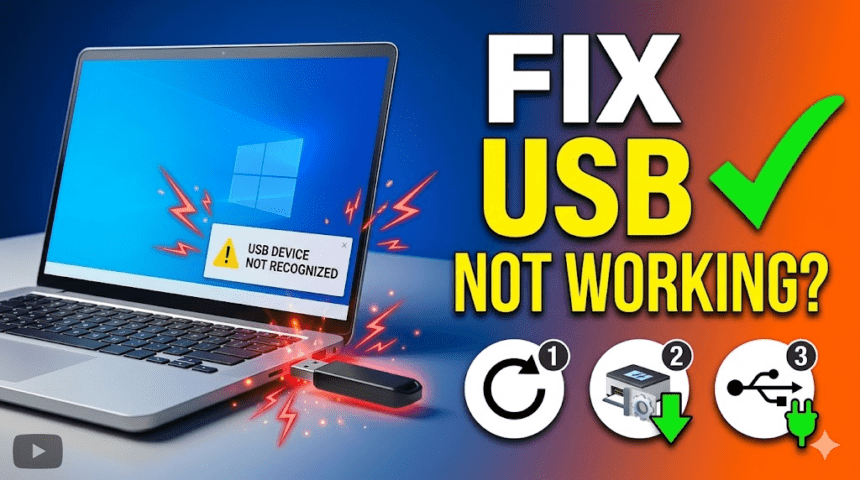
Nothing is more frustrating than plugging in a flash drive or mouse only to see the dreaded notification: “USB device not recognized.” Whether your drive isn’t showing up in File Explorer or your computer simply refuses to acknowledge the connection, this issue is usually solvable with a few software tweaks.
Follow this comprehensive 2026 guide to identify and fix the most common USB connectivity problems on Windows 10 and 11.

1. Basic Hardware Troubleshooting
Before diving into system settings, you should always rule out physical damage. Specifically, hardware failures are often the culprit.
- Test Different Ports: Move the device from the front panel to the rear ports (on a desktop) or try a different side of your laptop. Note that blue ports are usually USB 3.0 and offer better power stability.
- Inspect the Cable: Use a different USB cable if possible. Even a tiny internal fray can prevent data transmission while still providing power.
- The Cross-Computer Test: Plug the device into another PC. If it works there, the issue lies with your computer’s configuration. If it doesn’t work anywhere, the device itself is likely faulty.
2. Use Device Manager to Refresh Drivers
Corrupted or outdated drivers act as a broken bridge between your hardware and the OS. Consequently, refreshing these connections often solves the recognition error.
- Press Windows + X and select Device Manager.
- Expand the Universal Serial Bus controllers section.
- Look for any entry labeled “Unknown USB Device” or one with a yellow exclamation mark.
- Right-click the device and select Update driver. Choose Search automatically for drivers.
- If that fails, right-click and select Uninstall device, then restart your computer. Windows will automatically attempt to reinstall the driver upon reboot.
3. Optimize Power Management Settings
Windows sometimes “puts to sleep” your USB ports to save power, which can lead to connection drops. This is especially common on laptops running on battery.
Disable USB Selective Suspend
- Open the Control Panel and go to Power Options.
- Click Change plan settings > Change advanced power settings.
- Expand USB settings and then USB selective suspend setting.
- Set it to Disabled for both “On battery” and “Plugged in.”
Adjust Root Hub Settings
In Device Manager, right-click each USB Root Hub, select Properties, and go to the Power Management tab. Uncheck the box that says “Allow the computer to turn off this device to save power.”
4. Advanced System Repairs
If the drivers are fine but the device still won’t show up, you may have corrupted system files.
- Run SFC Scannow: Open Command Prompt as Administrator and type
sfc /scannow. This tool scans and repairs your Windows system files. - Check Disk Management: If it’s a flash drive that isn’t showing up in File Explorer, right-click the Start button and select Disk Management. You may need to right-click the drive and select Change Drive Letter and Paths to make it visible.
5. Preventive Measures for the Future
To avoid these errors in the future, follow these simple maintenance tips:
- Always use “Safely Remove Hardware” before unplugging a data drive.
- Keep your BIOS updated, as manufacturers frequently release patches to improve USB 3.2 and USB-C stability. You can check for these at HP Support.
- Regularly run Windows Update to ensure you have the latest Microsoft “class drivers” for generic peripherals.
Also Read : The Most Common iPhone Problems & How to Fix Them