By using this site, you agree to the Privacy Policy and Terms of Use.
Accept

Gadget Issues

Fix Your Gadgets

  • About Us
  • How to Fix
  • Error Fix
  • Tutorial
  • Tech News
© 2025 All Rights Reserved.
Reading: How to Fix Water in Your Microphone
Share
Sign In
Notification Show More
Font ResizerAa

Gadget Issues

Fix Your Gadgets

Font ResizerAa
  • About Us
  • How to Fix
  • Error Fix
  • Tutorial
  • Tech News
Search
  • About Us
  • How to Fix
  • Error Fix
  • Tutorial
  • Tech News
Have an existing account? Sign In
Follow US
© 2022 Foxiz News Network. Ruby Design Company. All Rights Reserved.
Gadget Issues > Blog > How to Fix > How to Fix Water in Your Microphone
How to Fix

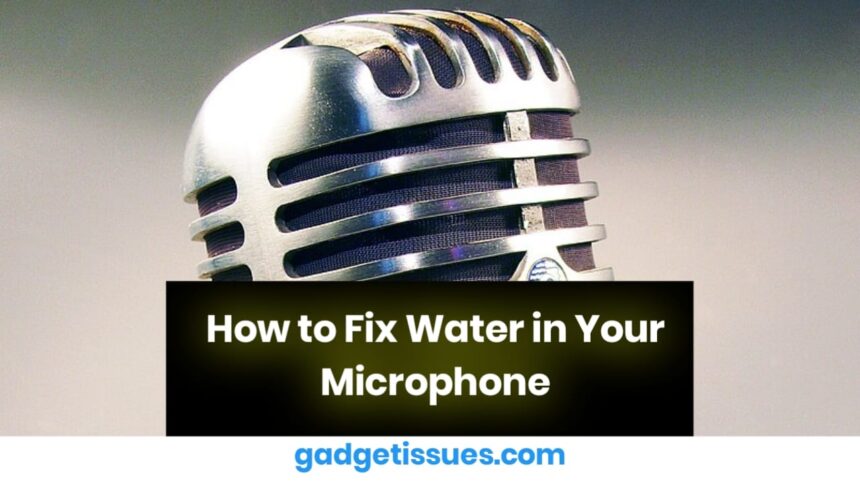
How to Fix Water in Your Microphone

skynet
Last updated: March 27, 2025 6:47 am
skynet
Share
3 Min Read
SHARE

If your microphone has been exposed to water, it may produce muffled sound or stop working altogether. Follow this guide to safely dry and restore your microphone.

Contents
Steps to Fix a Water-Damaged Microphone1. Turn Off and Disconnect Immediately2. Shake Out Excess Water3. Absorb Moisture4. Avoid Heat Damage5. Test the Microphone6. Clean Any ResidueConclusion

Steps to Fix a Water-Damaged Microphone

1. Turn Off and Disconnect Immediately

  • Power Down the Device: If the microphone is part of a phone, laptop, or external audio device, turn it off immediately to prevent short circuits.
  • Disconnect Accessories: Remove any cables, earphones, or external attachments.

2. Shake Out Excess Water

  • Gently Shake the Microphone: Hold it with the opening facing downward and lightly shake to remove trapped water.
  • Use a Dry Cloth: Wipe down the outer surface carefully.

3. Absorb Moisture

  • Use Silica Gel Packets: Place the microphone in an airtight container with silica gel packets for at least 24 hours.
  • Try Uncooked Rice: If silica gel is unavailable, submerge the device in a bowl of uncooked rice to draw out moisture.

4. Avoid Heat Damage
  • Do Not Use a Hair Dryer: High temperatures can damage internal components.
  • Use a Fan or Airflow: Place the microphone near a fan or in a well-ventilated area to speed up drying.

5. Test the Microphone

  • Reconnect and Power On: Once thoroughly dry, plug the microphone back in and turn on the device.
  • Use a Recording App: Test sound quality using a microphone testing tool.

6. Clean Any Residue

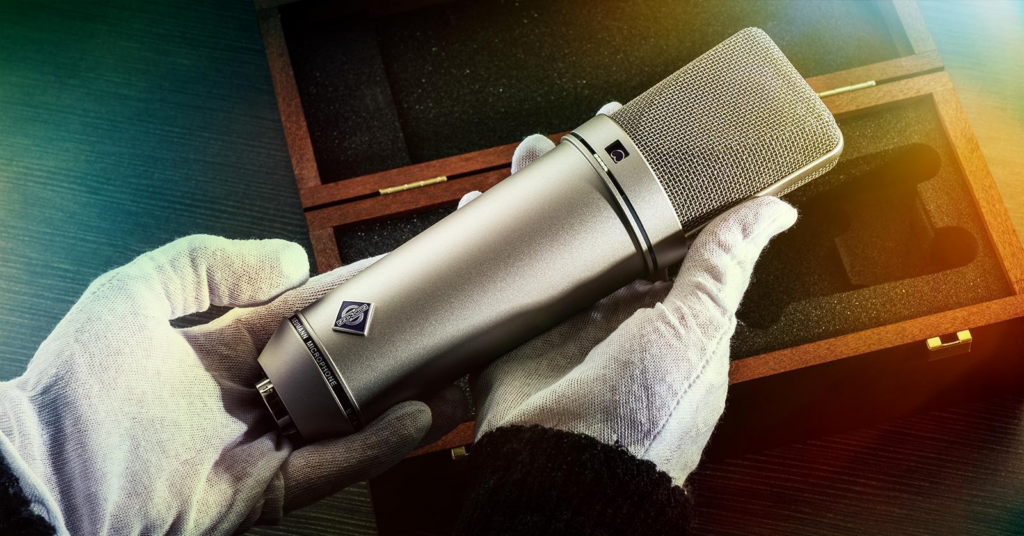
  • Use Isopropyl Alcohol: If sound remains muffled, lightly clean the microphone mesh with a microfiber cloth dampened with 99% isopropyl alcohol.
  • Inspect for Debris: Ensure no dust or dirt is blocking the mic opening.

Conclusion

Water damage to a microphone can be frustrating, but by following these steps, you can effectively dry and restore its functionality. Acting quickly, using the right drying techniques, and avoiding heat exposure can make a big difference in the recovery process. If your microphone still doesn’t work after these fixes, seeking professional repair services may be necessary. Protecting your microphone from moisture in the future can help extend its lifespan and maintain sound quality.

Also Read : Installing a Mac SSD into an OWC Envoy Pro Enclosure: A Step-by-Step Guide

You Might Also Like

How to Effectively Remove Water From Your Samsung Phone: A Step-by-Step Guide

How to Fix MacBook Display “Staingate” Issue: A Step-by-Step Guide

How to Fix a Water-Damaged Charging Port

How to Boot Your Samsung Galaxy in Safe Mode – A Step-by-Step Guide

Can’t Boot from USB Flash Drive – Troubleshooting Guide

TAGGED:Audio Equipment TroubleshootingCondensation in MicrophoneDIY Microphone RepairDrying Out ElectronicsFix Wet MicrophoneMicrophone Not Working After WaterMicrophone Water DamageTech Repair TipsWater Damage SolutionsWater-Damaged Audio Fix
Share This Article
Facebook Twitter Copy Link Print
Share
Previous Article How to Troubleshoot and Fix a Nintendo DSi
Next Article How to Fix Cut Cable In Middle

Latest News

How to Fix “USB Device Not Recognized”: A Complete Troubleshooting Guide
How to Fix
Stable Sight: 5 Ways to Stop Your Laptop Screen from Flickering.
How to Stop Laptop Screen Flickering: A Step-by-Step Fix Guide
How to Fix
Android speaker
8 Ways to Troubleshoot Any Speaker Issues on Your Android Phone
How to Fix
Phone Storage Full Fix
Free Up Storage Space on Your Phone in 6 Easy Steps
How to Fix
//

“Struggling with slow internet or other gadget problems? Our blog offers step-by-step solutions to common tech issues, helping you troubleshoot and resolve problems quickly and efficiently.”

Quick Link

  • Contact Us
  • Privacy Policy
  • Terms and Conditions
  • Cookie Policy
  • Disclaimer

Read Categories

  • Error Fix
  • How to Fix
  • Tech News
  • Tutorial
  • Uncategorized

Find Us on Socials

Follow US
© 2025 Gasgetissues. All Rights Reserved.
Welcome Back!

Sign in to your account


Lost your password?