Time flies rapidly. Smartwatches grow more feature-packed and attractive every single year. However, battery life remains a major, persistent problem for users.
Traditional watches cannot compete on functionality, but you rarely have to worry about them dying. Conversely, smartwatches frequently cause intense battery anxiety at the end of a busy day. But do not fret! These easy tips will help you save smartwatch battery life and beat the clock.
Most smartwatch battery-saving tips amount to turning specific features off. Naturally, if you switch all the smart functionality off, there is no point in having a smartwatch. Therefore, we recommend singling out the tips that best suit your personal usage habits.
1. Use Power-Saving Modes
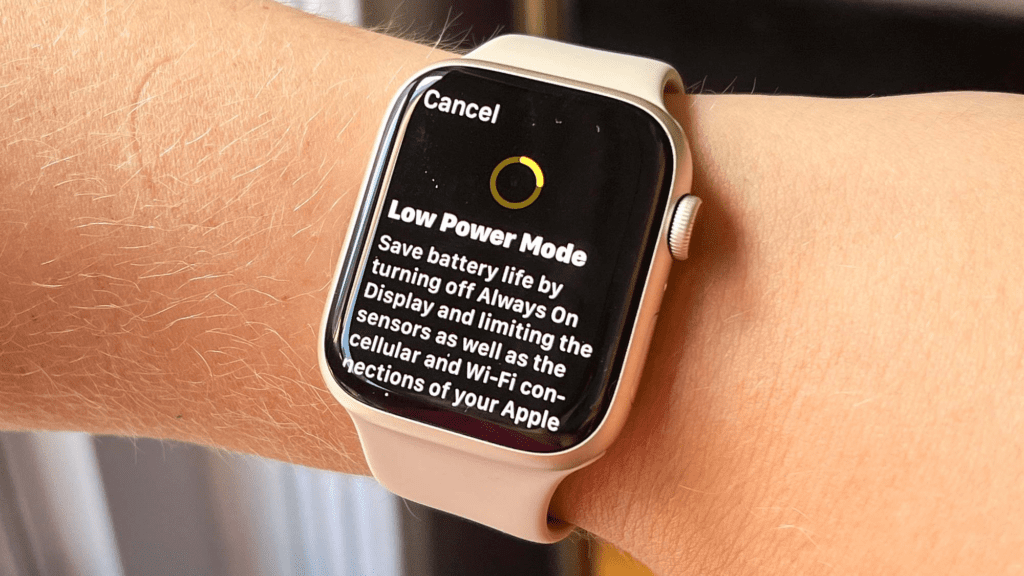
Most smartwatch manufacturers include built-in power-saving modes. These modes activate when your battery flags and your next charging opportunity remains distant. These modes generally shut down standard functionality to preserve precious juice.+1
Here is how to activate power-saving mode on popular devices:
- Apple Watch: Swipe up from the bottom and tap your battery percentage. Alternatively, go to Settings > Battery to toggle on Low Power Mode. This mode turns off the always-on display. Furthermore, it limits various sensor measurements and background connectivity.+1
- Google Wear OS Watches: Swipe down and tap the battery icon. You can also go to Settings > Battery to toggle on Battery Saver. This disables the always-on display, vibrations, and location services.
- Samsung Galaxy Watch: Swipe down and tap the Power saving icon. This disables wake-up gestures and reduces screen brightness, CPU speed, and background data.
2. Change Your Display Settings
The screen acts as the biggest drain on your smartwatch battery. Fortunately, you can do a few things to reduce its power consumption.
- Reduce Brightness: Lower your screen brightness manually in your watch settings.
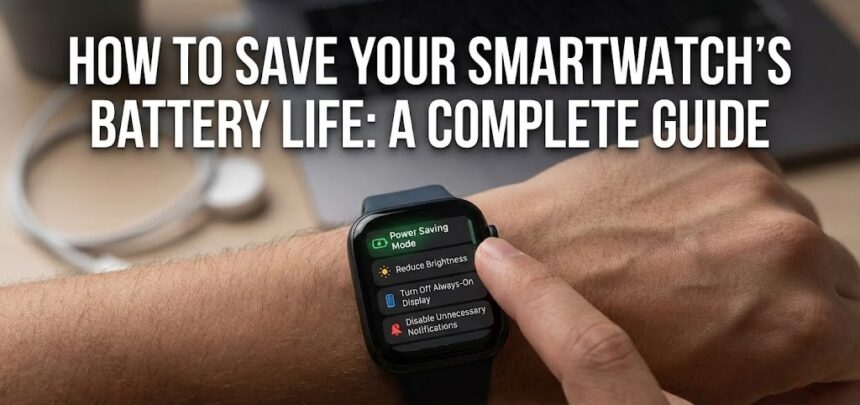
- Turn Off Always-On: Disable the “Always-On” display feature. This forces the screen to sleep when not in active use.
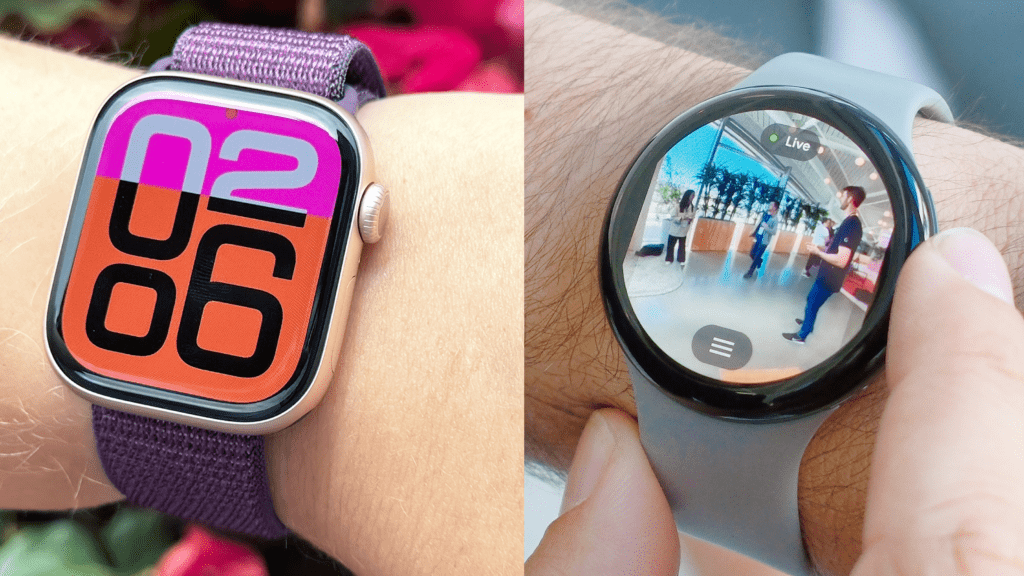
- Use Dark Watch Faces: Choose a simple watch face featuring a black background and minimal complications. Because OLED screens turn off individual pixels to display black, this saves a surprising amount of battery life.
3. Reduce Annoying Notifications
A steady stream of buzzing notifications will quickly drain your smartwatch battery. Therefore, you should cull any alerts that you do not absolutely need.
Open the companion app on your connected smartphone. Navigate to the Notifications tab. Next, scroll through your individual apps and firmly decide which ones actually deserve to send alerts to your wrist. Disabling social media pings and promotional emails will massively improve your daily battery performance.
4. Cut Unnecessary Connectivity
You can always use Airplane mode to quickly cut all connectivity. However, you can also manage things individually. Most smartwatches connect to smartphones using Bluetooth Low Energy (LE). This remains the least power-hungry connection option.
If you leave your phone behind, your watch will automatically search for Wi-Fi or cellular networks. This searching process drains battery rapidly. You can turn off Wi-Fi and Mobile Data directly in your watch settings to prevent this constant searching.
5. Turn Off Voice Assistants
Do you rarely use voice commands with your smartwatch? If so, you can save battery life by telling the device to stop actively listening for wake words.
- Apple Watch: Go to Settings > Siri. Toggle off Listen for “Hey Siri” and Raise to Speak.
- Wear OS & Galaxy Watches: Go to Settings > Google > Assistant and simply turn off “Hey Google.” ## 6. Limit Background App Refresh
Many apps work silently behind the scenes to update their data. This constant background activity quietly drains your smartwatch battery. You likely do not need every single app constantly updating itself. After all, the app will simply pull fresh data the moment you actively open it.
Open the companion app on your connected smartphone. Find the Background App Refresh settings. From there, you can toggle the feature off completely or disable it for specific, power-hungry individual apps.
Also Read : How to Fix a Broken Display on Android Mobile Phones