By using this site, you agree to the Privacy Policy and Terms of Use.
Accept

Gadget Issues

Fix Your Gadgets

  • About Us
  • How to Fix
  • Error Fix
  • Tutorial
  • Tech News
© 2025 All Rights Reserved.
Reading: I Cannot Switch My Laptop On: Power Button Blinking – Troubleshooting Guide
Share
Sign In
Notification Show More
Font ResizerAa

Gadget Issues

Fix Your Gadgets

Font ResizerAa
  • About Us
  • How to Fix
  • Error Fix
  • Tutorial
  • Tech News
Search
  • About Us
  • How to Fix
  • Error Fix
  • Tutorial
  • Tech News
Have an existing account? Sign In
Follow US
© 2022 Foxiz News Network. Ruby Design Company. All Rights Reserved.
Gadget Issues > Blog > How to Fix > I Cannot Switch My Laptop On: Power Button Blinking – Troubleshooting Guide
How to Fix

I Cannot Switch My Laptop On: Power Button Blinking – Troubleshooting Guide

skynet
Last updated: March 26, 2025 5:26 am
skynet
Share
3 Min Read
SHARE

If your laptop’s power button blinks but the device does not turn on, it could indicate power supply issues, hardware failure, or system errors. This guide will help you diagnose and fix the issue. For more information on troubleshooting power-related problems, visit HP Support, where similar topics are covered.

Contents
1. Check Power Supply and Connections2. Perform a Hard Reset3. Inspect RAM and Internal Components4. Reset BIOS and CMOS Battery5. Seek Professional HelpConclusion

1. Check Power Supply and Connections

A faulty power adapter or battery could prevent your laptop from turning on.

  • Ensure the power adapter is securely connected to both the laptop and power outlet.
  • Try using a different power outlet or adapter if available.
  • Remove the battery (if removable) and try powering the laptop with just the adapter.

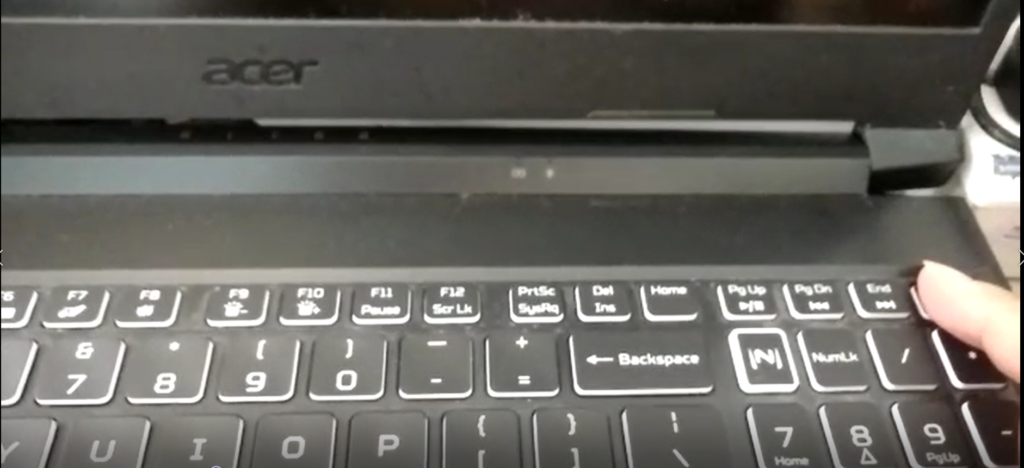
2. Perform a Hard Reset

A hard reset can sometimes resolve power issues.

  • Disconnect the power adapter and remove the battery (if applicable).
  • Hold down the power button for 30 seconds.
  • Reconnect the battery and power adapter, then try turning on the laptop.
3. Inspect RAM and Internal Components

A loose RAM stick or internal component can cause the power button to blink without turning on the laptop.

  • Power off the laptop and unplug it.
  • Open the back panel and reseat the RAM modules.
  • If your laptop has two RAM sticks, try booting with one at a time to identify faulty memory.

4. Reset BIOS and CMOS Battery

If your laptop still doesn’t turn on, resetting the BIOS may help.

  • Turn off your laptop and disconnect all power sources.
  • Locate the CMOS battery on the motherboard and remove it for 5 minutes.
  • Reinsert the battery and try turning on the laptop.

5. Seek Professional Help

If none of the above steps work, your laptop may have a faulty motherboard or other internal component issues. Consider contacting your manufacturer’s support or a professional repair technician for assistance.

Conclusion

A blinking power button without startup often signals a power supply issue, faulty RAM, or BIOS corruption. By checking power connections, performing a hard reset, reseating RAM, and resetting the BIOS, you can often resolve the problem. If the issue persists, professional repair may be required.

Also Read : Lenovo Laptop Will Not Turn On – Troubleshooting Guide

You Might Also Like

How to Effectively Remove Water From Your Samsung Phone: A Step-by-Step Guide

How to Fix MacBook Display “Staingate” Issue: A Step-by-Step Guide

How to Fix a Water-Damaged Charging Port

How to Boot Your Samsung Galaxy in Safe Mode – A Step-by-Step Guide

How to Package a Logic Board for Shipping

TAGGED:**Laptop Won’t Turn OnBattery FailureBIOS Error CodesComputer Boot Issues**DIY Tech FixFixing Laptop ProblemsHardware Diagnosticslaptop repair guideLoose ConnectionsNo Power IssueOverheating IssuesPC TroubleshootingPower Button BlinkingPower Supply IssuesStartup Failure
Share This Article
Facebook Twitter Copy Link Print
Share
Previous Article Why Does My Power Button Blink 3 Times? Troubleshooting Guide
Next Article Can’t Boot from USB Flash Drive – Troubleshooting Guide

Latest News

How to Fix “USB Device Not Recognized”: A Complete Troubleshooting Guide
How to Fix
Stable Sight: 5 Ways to Stop Your Laptop Screen from Flickering.
How to Stop Laptop Screen Flickering: A Step-by-Step Fix Guide
How to Fix
Android speaker
8 Ways to Troubleshoot Any Speaker Issues on Your Android Phone
How to Fix
Phone Storage Full Fix
Free Up Storage Space on Your Phone in 6 Easy Steps
How to Fix
//

“Struggling with slow internet or other gadget problems? Our blog offers step-by-step solutions to common tech issues, helping you troubleshoot and resolve problems quickly and efficiently.”

Quick Link

  • Contact Us
  • Privacy Policy
  • Terms and Conditions
  • Cookie Policy
  • Disclaimer

Read Categories

  • Error Fix
  • How to Fix
  • Tech News
  • Tutorial
  • Uncategorized

Find Us on Socials

Follow US
© 2025 Gasgetissues. All Rights Reserved.
Welcome Back!

Sign in to your account


Lost your password?