
Over time, your iPhone 16 Pro Max battery may lose its ability to hold a charge, leading to reduced battery life and unexpected shutdowns. Replacing the battery can restore your phone’s performance, and while Apple provides official battery replacement services (Apple Support), a DIY approach can save you money.
This guide will walk you through the battery replacement process, including the tools required, precautions to take, and step-by-step instructions.
Tools Required for iPhone 16 Pro Max Battery Replacement
Before you start, make sure you have the necessary tools:
- Pentalobe screwdriver – For removing the bottom screws.
- Tri-point Y000 screwdriver – To remove internal battery connector screws.
- Plastic opening picks – To separate the screen from the frame.
- Suction cup handle – To safely lift the display.
- Adhesive remover or isopropyl alcohol (90% or higher) – To loosen battery adhesive.
- Plastic spudger tool – To disconnect internal components.
- Replacement adhesive strips – To secure the new battery.
- Heat gun or iOpener – To soften adhesive.
- Tweezers – For handling small components.
You can find a complete battery replacement kit at iFixit, which provides high-quality tools for precision repairs.
Step-by-Step iPhone 16 Pro Max Battery Replacement
Step 1: Power Off Your iPhone
Turn off your iPhone 16 Pro Max before starting to prevent electrical damage.
Step 2: Remove the Bottom Screws
- Locate the two pentalobe screws near the charging port.
- Use a pentalobe screwdriver to carefully remove them and store them safely.
For a detailed screwdriver size guide, check out Mobile Repair Tech.
Step 3: Heat the Display and Open the iPhone
- Use a heat gun or iOpener to warm up the screen edges for 2-3 minutes.
- This helps soften the adhesive, making it easier to lift the display.
- Place a suction cup near the bottom edge and gently pull up.
- Insert an opening pick to carefully separate the screen from the frame.
Step 4: Disconnect the Battery and Display Cables
- Remove the tri-point screws securing the battery connector cover.
- Disconnect the battery flex cable using a plastic spudger.
- Carefully disconnect the display cables to fully separate the screen.
If you’re unfamiliar with handling delicate connectors, refer to Apple Support for additional guidance.
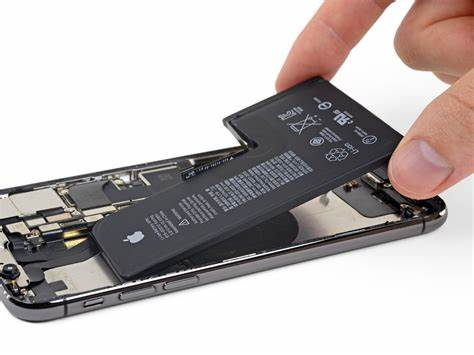
Step 5: Remove and Replace the Battery
- Locate the battery adhesive pull tabs at the bottom of the battery.
- Gently pull them at a low angle to release the adhesive.
- If the strips break, apply isopropyl alcohol and use a plastic spudger to lift the battery.
- Install the new battery and secure it with fresh adhesive strips.
For high-quality replacement batteries, check out Amazon for reliable options.
Step 6: Reassemble the iPhone
- Reconnect the battery and display cables.
- Carefully position the screen back onto the frame and press down gently.
- Reinsert the two pentalobe screws at the bottom.
Step 7: Test Your iPhone
- Turn on your iPhone and check if it charges properly.
- Use a battery health app to verify the new battery’s status.
Final Thoughts
Replacing your iPhone 16 Pro Max battery can improve battery life and device performance. If done correctly, a DIY battery replacement can save you money while ensuring your phone lasts longer. However, if you’re unsure about performing the repair, consider visiting an Apple-certified repair center for professional help.
Also Read : How to Clean Keyboard Marks Off Your MacBook Screen