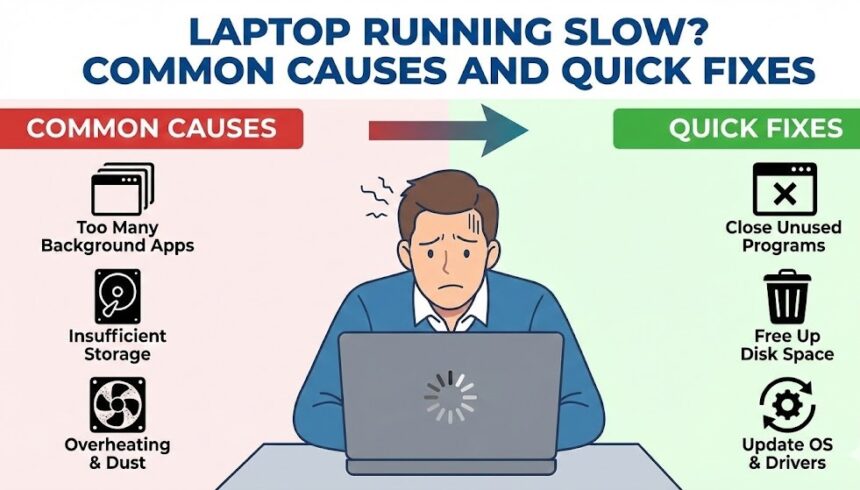
A slow laptop is incredibly frustrating, especially when you are in the middle of important work or just trying to unwind. But don’t worry—you don’t necessarily need to rush out and buy a new one. Most performance issues stem from simple, everyday causes that can be fixed with a few quick adjustments.
Here are five common culprits behind a sluggish laptop and what you can do to get your machine running like new again.

1. Too Many Open Programs
The Problem: A laptop has limited resources, primarily RAM and CPU. When you have too many applications running in the background—like Spotify, Photoshop, or dozens of browser tabs—it completely drains your processing power. This issue gets even worse with programs that are configured to launch automatically as soon as you turn the computer on.
The Quick Fix: Close apps when they are not in active use. On a Windows PC, open the Task Manager to see which programs are consuming the most resources and shut them down. If you are on a MacBook, use the Activity Monitor to identify and close the apps you no longer need.
2. Hard Drive Problems
The Problem: Your hardware requires at least 10% to 20% free space to function properly. When your drive is packed with old files, unused programs, and system junk, the entire system slows down. This is especially true if your laptop uses an older mechanical Hard Disk Drive (HDD).
The Quick Fix: Delete old files you no longer need. Check your Downloads folder, Desktop, and My Documents for heavy files taking up space. Uninstall applications you haven’t used in months, and don’t forget to empty your Recycle Bin or Trash to free up the space permanently.
3. Malware and Viruses
The Problem: Malicious software like viruses, spyware, and other forms of malware running silently in the background will drastically slow down your laptop and severely compromise your personal security.
The Quick Fix: Run a full system scan using a trusted antivirus or anti-malware program. Once any threats are removed, ensure real-time protection is enabled to stop future infections before they happen.
4. Outdated Drivers and Operating System
The Problem: Drivers help your laptop’s hardware communicate smoothly with the operating system. When your OS or drivers are outdated, your system misses out on crucial performance optimizations and security patches, leading to bugs, glitches, and slow speeds.
The Quick Fix: Always install the latest updates. On Windows, open your Settings and check for Windows Updates. On a Mac, navigate to System Settings > General > Software Update. Always ensure you are downloading updates directly from official sources to stay secure.
5. Overheating
The Problem: When a laptop gets too hot, it automatically throttles its performance to prevent permanent hardware damage. Dust buildup, blocked airflow, or simply resting your laptop on a soft surface like a bed or couch can cause it to overheat very quickly.
The Quick Fix: Keep your laptop’s vents clear of dust and debris. Always use it on a hard, flat surface like a desk or a table. Investing in a cooling pad can also drastically help maintain a safe, cool operating temperature.
How to Prevent Future Slowdowns
Consistent maintenance is the secret to a fast and problem-free laptop. Follow these daily habits:
- Restart your laptop frequently to clear temporary memory and close lingering background apps.
- Keep your operating system and drivers continuously updated.
- Run routine virus scans using reliable security software.
- Avoid installing heavy programs or browser extensions you don’t genuinely need.
- Use built-in disk cleanup tools every few weeks to clear out cached data and free up space.

When to Seek Professional Help
If your laptop is still crawling after you’ve tried these basic fixes, it’s time to call in the experts. Getting help from a trusted professional—like a laptop service center in Malappuram—is the safest route.
Qualified technicians can perform a deep diagnostic check to detect hidden hardware or software failures, replace failing components, and restore your system’s speed. Addressing these issues early on saves you time and money, and prevents fatal hardware damage down the line.
Conclusion
A slow laptop doesn’t automatically mean it belongs in the trash. With a little bit of troubleshooting, your device can perform flawlessly again. However, if your laptop needs expert care and you can’t fix it yourself, B Serve Gadget Repair in Perinthalmanna is your best choice.
With over 27 years of experience in the industry, our certified technicians offer convenient on-site pick-up and drop-off services across Kottakkal, Tirur, and Perinthalmanna. We will collect your device, repair it with genuine parts, and safely deliver it back to your doorstep at an affordable price.
Also Read : iPhone Not Charging? Complete Troubleshooting Guide for Indian Users