Is your PS5 turning off by itself without warning? You’re not alone — and the issue is often linked to a few common culprits like overheating, outdated system software, loose power cables, or clogged vents. Sony’s safety protocols trigger auto shutdowns to prevent hardware damage, but it can be frustrating when your console powers down mid-game. Disabling Rest Mode may help if the console shuts off while idle, but persistent problems might require deeper fixes like rebuilding the database, reinstalling faulty apps, or even performing a full factory reset. If none of these steps work, contacting PlayStation Support is your next best move.
Solutions to Fix PS5 Turning Off By Itself
Try these step-by-step solutions to fix your PS5:
1. Check for Overheating
The PS5 is designed to shut down automatically when it overheats to prevent hardware damage.
Fix:
- Place it in a well-ventilated space, not in closed cabinets or on carpet.
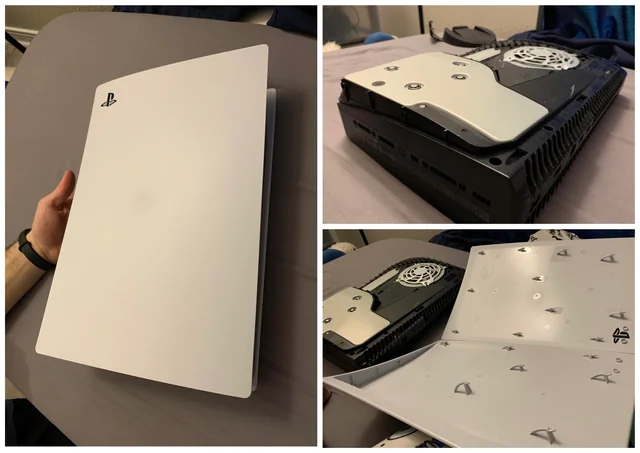
- Use compressed air to clear dust from the vents every few weeks.
- Keep the console away from direct sunlight or heat sources.
- If the fan sounds loud or the console feels hot, shut it down and let it cool before restarting.
2. Update Your System Software
Outdated firmware can lead to crashes or sudden shutdowns.
Fix:
- Go to Settings > System > System Software > Update and Settings.
- Select Update Using Internet.
- If needed, download the update from the PlayStation website and install it using a USB.
3. Disable Rest Mode Temporarily
Rest Mode can cause problems on some consoles, especially when left idle for long periods.
Fix:
- Navigate to Settings > System > Power Saving > Time Until PS5 Enters Rest Mode.
- Choose Don’t Put in Rest Mode for both options.
- Also, disable Enable HDMI Device Link under Settings > System > HDMI.
4. Check the Power Connection
A loose or damaged power cable can interrupt power flow, causing shutdowns.
Fix:
- Ensure the power cable is properly connected.
- Try a different wall outlet.
- Avoid using surge protectors—plug the PS5 directly into the wall.
- Inspect the cable for damage or replace it with an original Sony-approved one.
5. Rebuild the Database in Safe Mode
Corrupt system files may cause your console to crash or power down.
Fix:
- Turn off the PS5 and hold the power button until you hear two beeps.
- Connect your controller via USB and press the PS button.
- Select Option 5: Rebuild Database.
- This won’t erase your saved data but will reorganize the file system.
Learn more about Safe Mode steps on PlayStation’s official Safe Mode guide.
6. Look for Problematic Games or Apps
If shutdowns occur during specific games, those apps might be the problem.
Fix:
- Monitor which games cause the shutdown.
- Delete and reinstall the affected game.
- Highlight the game, press Options, then choose Check for Update.
7. Factory Reset (Last Resort)
A full reset can eliminate deeper system bugs.
Fix:
- Go to Settings > System > System Software > Reset Options.
- Select Reset Your Console.
- Backup your data before performing this step as it erases everything.
For detailed steps, refer to PlayStation’s reset guide.
8. Contact PlayStation Support or Visit a Service Center
If your console keeps turning off after trying everything, the problem could be hardware-related.
Fix:
- Visit the PlayStation Support page.
- If your console is under warranty, request a repair or replacement.
- Alternatively, take it to an authorized third-party repair center for diagnostics.
Conclusion
You can prevent your PS5 from turning off unexpectedly by ensuring proper ventilation, keeping software updated, and disabling Rest Mode. Rebuilding the database and verifying power supply are also effective solutions. If the problem stems from a specific game, reinstalling it may help. For persistent issues, consider a factory reset or reach out to a professional repair service. Keeping your console healthy means more uninterrupted gaming sessions.
Also Read : How to Correctly Clean Corrosion from a MacBook Pro Logic Board