By using this site, you agree to the Privacy Policy and Terms of Use.
Accept

Gadget Issues

Fix Your Gadgets

  • About Us
  • How to Fix
  • Error Fix
  • Tutorial
  • Tech News
© 2025 All Rights Reserved.
Reading: Left Mouse Button Double Clicking? Here’s What You Can Do to Fix It
Share
Sign In
Notification Show More
Font ResizerAa

Gadget Issues

Fix Your Gadgets

Font ResizerAa
  • About Us
  • How to Fix
  • Error Fix
  • Tutorial
  • Tech News
Search
  • About Us
  • How to Fix
  • Error Fix
  • Tutorial
  • Tech News
Have an existing account? Sign In
Follow US
© 2022 Foxiz News Network. Ruby Design Company. All Rights Reserved.
Gadget Issues > Blog > How to Fix > Left Mouse Button Double Clicking? Here’s What You Can Do to Fix It
How to Fix

Left Mouse Button Double Clicking? Here’s What You Can Do to Fix It

skynet
Last updated: May 21, 2025 1:02 pm
skynet
Share
4 Min Read
SHARE

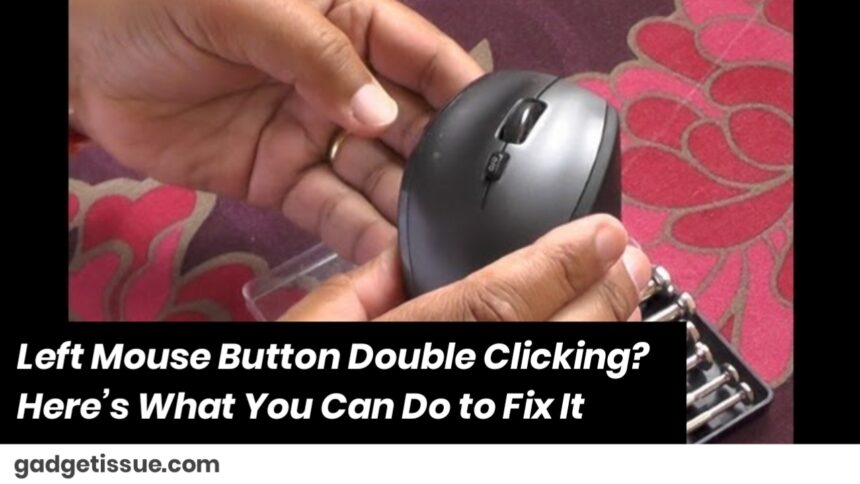
You’re just trying to click once—select some text, open a file, maybe play a game—and BAM! Your mouse decides to double-click like it has a mind of its own.

Contents
1. Tweak Your Mouse Settings2. Switch USB Ports3. Wireless Mouse? Check the Batteries4. Give the Button a Quick Clean5. Update or Reinstall the Driver6. Try a Backup Mouse7. Check the Mouse App (If It Has One)8. Last Resort: It Might Just Be Worn OutThe Bottom Line

Before you toss it across the room or start shopping for a new one, try these quick fixes. You might be able to sort it out in just a few minutes.

1. Tweak Your Mouse Settings

Sometimes it’s not the mouse—it’s just how your computer is reading your clicks.

If you’re on Windows, try this:

  • Open Control Panel
  • Go to Mouse settings
  • Look for the double-click speed slider
  • Move it slightly toward “Slower”
  • Click the little folder icon next to it to test

If your system thinks your clicks are happening too fast, this setting can fix it.

2. Switch USB Ports

If your mouse plugs in via USB, unplug it and try a different port.
Sometimes, it’s just a fussy port acting up—not your mouse.

3. Wireless Mouse? Check the Batteries

Old batteries = weird mouse behavior.

If your clicks are acting up and your mouse feels a little laggy too, it could be that the batteries are low. Swap them out with fresh ones and see if things settle down.

4. Give the Button a Quick Clean

Yup, even your mouse needs a bit of cleaning now and then. Dust, crumbs, or even skin oils can mess with the button’s function.

Here’s what to do:

  • Turn off or unplug your mouse
  • Use a bit of compressed air or a soft brush to clean around the left-click button
  • Press the button a few times to help shake loose anything stuck underneath

It’s a simple step, but it works more often than you’d think.

5. Update or Reinstall the Driver

Drivers are like translators between your mouse and your computer. When they’re out of date, things can get lost in translation—like your mouse thinking one click = two.

To update:

  • Right-click the Start button → Open Device Manager
  • Expand Mice and other pointing devices
  • Right-click on your mouse → Click Update driver

Still no luck? Uninstall it from the same menu and restart your PC. Windows will install a fresh one automatically.
6. Try a Backup Mouse

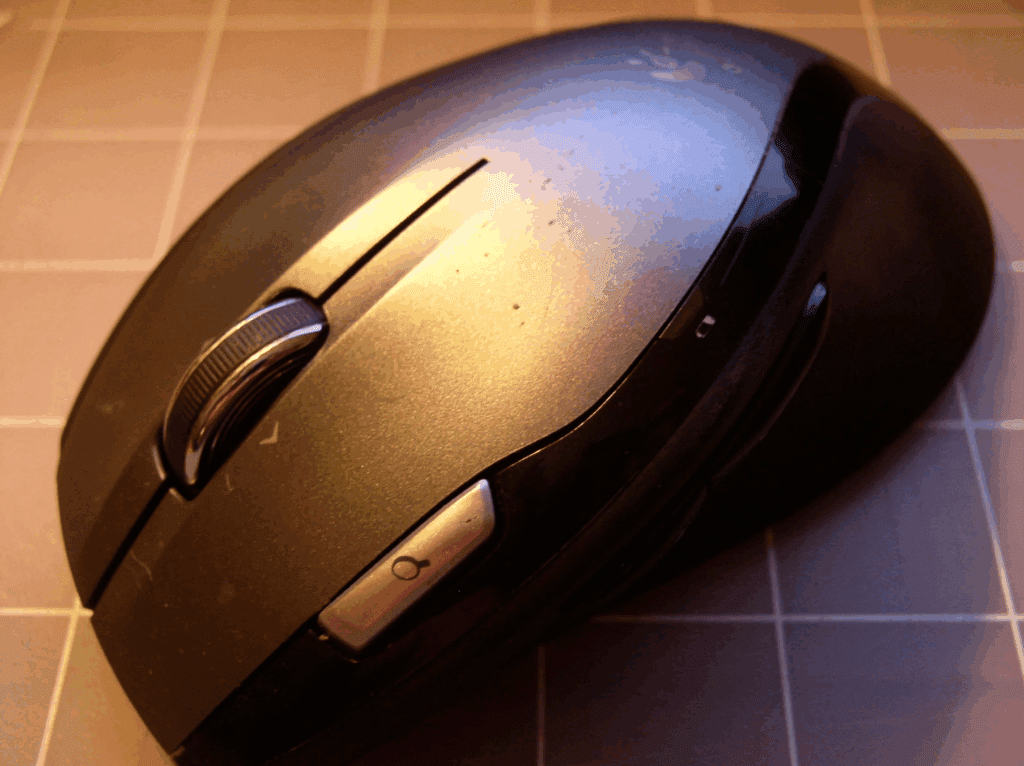
Got an old mouse lying around? Plug it in and see if the issue still happens.
If everything works fine, congrats! You’ve just confirmed your current mouse is the culprit.

7. Check the Mouse App (If It Has One)

If you’ve got a fancy mouse—Logitech, Razer, Corsair, etc.—you probably have their software installed (like G Hub, Razer Synapse, etc.).

Open it up and look for:

  • Click settings
  • Macro assignments
  • Firmware updates

Sometimes these apps have fixes built right in. Definitely worth checking.

8. Last Resort: It Might Just Be Worn Out

If you’ve tried everything and your mouse is still misbehaving, it could be the internal switch that’s gone bad. That happens after tons of clicks over time.

Unless you’re into tiny soldering projects, it’s probably time to treat yourself to a new mouse.

The Bottom Line

A jumpy left-click doesn’t always mean your mouse is done for.
Try these steps—adjust some settings, give it a clean, check the driver, maybe even change the batteries—and you might just fix it yourself.

Also Read : How to Fix a Loose USB Port on a Xiaomi Power Bank

You Might Also Like

How to Spot Hidden Damage After Dropping Your Phone

10 Common Samsung Phone Repair Problems and Solutions

Top Reasons Smartphones Overheat & How to Prevent It

How to Effectively Remove Water From Your Samsung Phone: A Step-by-Step Guide

How to Fix MacBook Display “Staingate” Issue: A Step-by-Step Guide

TAGGED:Computer HelpDIY tech repairDouble Click ProblemEasy Tech FixFix Mouse ButtonGaming Mouse ProblemHardware Issue FixLeft Click IssueMac Mouse IssueMouse Button FixMouse Double ClickMouse GlitchMouse Repair TipsMouse SettingsMouse TroubleshootingPC AccessoriesPC Mouse FixTech How-ToTech SupportWindows Mouse Fix
Share This Article
Facebook Twitter Copy Link Print
Share
Previous Article Mouse Pointer Not Moving on Screen? Here’s a Simple Guide to Fix It
Next Article Laptop Network Adapter Light Always On but No Internet? Here’s What Might Be Going On

Latest News

Green Lines on Phone Screen
What Causes Sudden Green Lines or Black Spots on Your Phone Screen?
Uncategorized
The Master Blueprint for 2026: Top 8 Essential Laptop and Computer Repair Tips
How to Fix
Fix a water-damaged phone in 2026 using the silica gel method. Learn why the rice myth fails and follow our 3-phase emergency guide to rescue your device and data.
Don’t Use Rice: The Definitive 2026 Guide to Saving a Water-Damaged Phone
How to Fix
Formatted, fact-checked, and optimized by Gemini AI (2026).
Why Laptop Performance Drops and How Expert Adelaide Services Restore Speed in 2026
How to Fix
//

“Struggling with slow internet or other gadget problems? Our blog offers step-by-step solutions to common tech issues, helping you troubleshoot and resolve problems quickly and efficiently.”

Quick Link

  • Contact Us
  • Privacy Policy
  • Terms and Conditions
  • Cookie Policy
  • Disclaimer

Read Categories

  • Error Fix
  • How to Fix
  • Tech News
  • Tutorial
  • Uncategorized

Find Us on Socials

Follow US
© 2025 Gasgetissues. All Rights Reserved.
Welcome Back!

Sign in to your account


Lost your password?