By using this site, you agree to the Privacy Policy and Terms of Use.
Accept

Gadget Issues

Fix Your Gadgets

  • About Us
  • How to Fix
  • Error Fix
  • Tutorial
  • Tech News
© 2025 All Rights Reserved.
Reading: How to Repair Screen Flickering on Startup: Fast Solutions That Really Work
Share
Sign In
Notification Show More
Font ResizerAa

Gadget Issues

Fix Your Gadgets

Font ResizerAa
  • About Us
  • How to Fix
  • Error Fix
  • Tutorial
  • Tech News
Search
  • About Us
  • How to Fix
  • Error Fix
  • Tutorial
  • Tech News
Have an existing account? Sign In
Follow US
© 2022 Foxiz News Network. Ruby Design Company. All Rights Reserved.
Gadget Issues > Blog > How to Fix > How to Repair Screen Flickering on Startup: Fast Solutions That Really Work
How to Fix

How to Repair Screen Flickering on Startup: Fast Solutions That Really Work

skynet
Last updated: May 26, 2025 9:15 am
skynet
Share
3 Min Read
SHARE

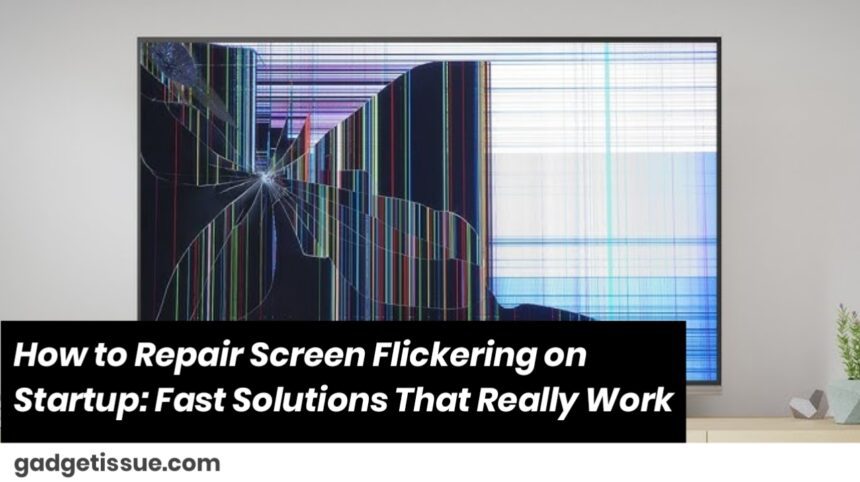
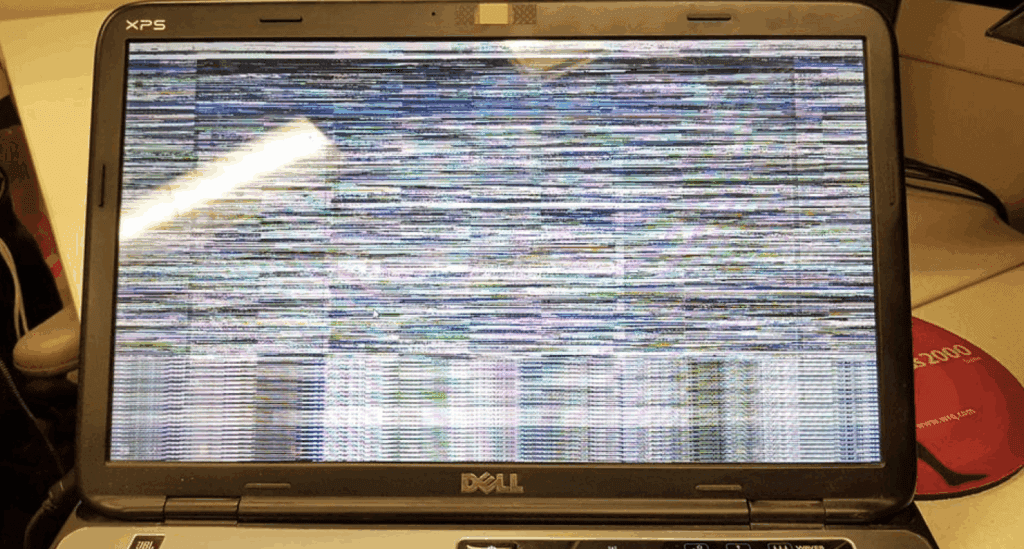
Is your screen flickering immediately after you turn on your device? You’re not the only one — screen flickering is a widespread problem that can go from slight glitches to major hardware issues. Whether you use a laptop, desktop display, or even a television screen, here’s how to repair it step-by-step.

Contents
Common Reasons for Screen Flickering After Power OnStep-by-Step Solutions:1. Inspect the Cable Connections2. Boot in Safe Mode3. Update or Roll Back Graphics Drivers4. Disable Problem Startup Programs5. Change Refresh RatePro Tips:When to Seek Professional Help:Final Thoughts:

Common Reasons for Screen Flickering After Power On

  • Loose or broken display cables
  • Graphics driver problems
  • Failed display hardware
  • Overheating/insufficient ventilation
  • Incompatible startup programs

Step-by-Step Solutions:

1. Inspect the Cable Connections

  • For desktops, make sure the HDMI/VGA/DisplayPort cable is securely plugged in.
  • Attempt a different cable or port if available.
  • For laptops, connect to an external monitor to eliminate internal screen problems.

2. Boot in Safe Mode

  • In Windows, press F8 or hold Shift + Restart to boot in Safe Mode.
  • If the flickering ceases in Safe Mode, it’s probably a software or driver problem.

3. Update or Roll Back Graphics Drivers
  • Device Manager > Display adapters
  • Right-click and choose Update Driver
  • If the issue began after an update, attempt Roll Back Driver

4. Disable Problem Startup Programs

  • Go to Task Manager > Startup tab to disable third-party programs.
  • Restart and see if the flickering persists.

5. Change Refresh Rate

  • Display Settings > Advanced Display Settings
  • Set 60Hz refresh rate (or your screen’s optimum recommended rate)

Pro Tips:

  • For laptop users: Perform a hardware diagnostic test (Dell, HP, Lenovo all provide built-in facilities).
  • Overheating check: Clean vents, ensure adequate airflow.
  • Still flickering? Try connecting your computer to an external display in order to determine if the problem is with your monitor or GPU.

When to Seek Professional Help:

If none of the above fixes work, it could be a hardware issue (such as a bad screen inverter, GPU, or motherboard). Under such circumstances, a trip to a certified technician is your best bet.

Final Thoughts:

Don’t overlook screen flickering — it may cause lasting damage or indicate underlying problems. Use these steps to troubleshoot and regain smooth display performance soon

Also Read : Why Is My Phone Overheating? Causes and Fixes
You Might Also Like

How to Effectively Remove Water From Your Samsung Phone: A Step-by-Step Guide

How to Fix MacBook Display “Staingate” Issue: A Step-by-Step Guide

How to Fix a Water-Damaged Charging Port

How to Boot Your Samsung Galaxy in Safe Mode – A Step-by-Step Guide

Can’t Boot from USB Flash Drive – Troubleshooting Guide

TAGGED:ComputerRepairGuideDisplaySettingsDisplayTroubleshootingFlickeringScreenSolutionsLaptopScreenFixMonitorGlitchRepairPCStartupProblemsQuickTechFixScreenFlickeringFixStartupIssuesTechTipsTroubleshootDisplayWindowsFlickerFix
Share This Article
Facebook Twitter Copy Link Print
Share
Previous Article Complete Guide to Troubleshooting Headphones Charging Problems
Next Article Cracked Screen on Your 65-Inch Philips TV? Here’s What You Can Do

Latest News

How to Fix “USB Device Not Recognized”: A Complete Troubleshooting Guide
How to Fix
Stable Sight: 5 Ways to Stop Your Laptop Screen from Flickering.
How to Stop Laptop Screen Flickering: A Step-by-Step Fix Guide
How to Fix
Android speaker
8 Ways to Troubleshoot Any Speaker Issues on Your Android Phone
How to Fix
Phone Storage Full Fix
Free Up Storage Space on Your Phone in 6 Easy Steps
How to Fix
//

“Struggling with slow internet or other gadget problems? Our blog offers step-by-step solutions to common tech issues, helping you troubleshoot and resolve problems quickly and efficiently.”

Quick Link

  • Contact Us
  • Privacy Policy
  • Terms and Conditions
  • Cookie Policy
  • Disclaimer

Read Categories

  • Error Fix
  • How to Fix
  • Tech News
  • Tutorial
  • Uncategorized

Find Us on Socials

Follow US
© 2025 Gasgetissues. All Rights Reserved.
Welcome Back!

Sign in to your account


Lost your password?